Your phone is gone. This guide covers phone stolen what to do in the first 60 minutes, in the order that gives you the best chance of locking the thief out. The order follows Apple Support and the Federal Communications Commission, with Android steps from Google Support for Find Hub. Borrow a phone, tablet or computer as soon as you can, and do not go after the phone yourself if its location looks unfamiliar.
The 60 minute plan at a glance
Lock the phone first, then stop the phone number from being used, then report the theft to the police and protect your accounts. That order matters because a locked phone buys you time, a suspended line stops calls and texts in your name, and a police report creates the record your carrier may ask for.
| Minutes | Do this | Why it matters |
|---|---|---|
| 0 to 5 | Confirm it is gone, borrow a second device, open Find My or Find Hub | You need another screen |
| 5 to 15 | Mark the phone as lost, check its last location | A locked phone keeps the thief out |
| 15 to 30 | Call your carrier, suspend the line, ask about IMEI blocking | Stops calls, texts and charges |
| 30 to 60 | Report the theft to the police, change key passwords, check bank and email | This creates the official record |
Note the time of each step, each person you speak to, and any reference number. If the phone is found later, you will need that list to undo the suspension and the lock.

Lock your iPhone with Mark as Lost
Go to iCloud.com/find in any browser, sign in to your Apple Account, select your iPhone and choose Mark as Lost. You do not need a verification code to sign in, so you can do this even though your trusted device was stolen. Lost Mode locks the phone with its passcode and suspends cards and passes in Apple Pay.
The map shows its location if one is available, and an offline phone locks when it comes back online. Do not include contact information in the Lost Mode message when the phone was stolen. Apple Support warns a thief might use it for social engineering. Do not remove the phone from Find My, even later. Removing it also removes Activation Lock. If Find My was never turned on, the phone will not appear at iCloud.com/find, so change your Apple Account password right away.
Lock your Android phone with Find Hub and Remote Lock
Open android.com/find in a browser or the Find Hub app on another Android device, sign in, select the phone and tap Mark as lost. This locks the phone with your PIN, pattern or password. If signing in is hard in the moment, use Remote Lock at android.com/lock with your verified phone number instead.
Google Support says remote actions need power, a mobile or Wi-Fi connection, a signed in Google Account, Find Hub turned on and visible on Google Play. The map shows its location, or its last known location. Tap Mark as lost and confirm. Remote Lock is the faster fallback when signing in is hard. It needs a screen lock, an active SIM card, a verified phone number, Find Hub turned on and an internet connection, set up before the theft. If the phone is offline, its screen locks automatically once it is online.
iPhone vs Android: lock, locate and erase compared
Both systems let you locate, lock and erase a stolen phone from another device, but the names, the requirements and what happens after an erase are different. The table below compares the two side by side so you can follow the right steps for the phone you own.
| Action | iPhone | Android |
|---|---|---|
| Locate | Find My app or iCloud.com/find | Find Hub app or android.com/find |
| Lock | Mark as Lost, locks with passcode, suspends Apple Pay | Mark as lost, locks with PIN, pattern or password; Remote Lock at android.com/lock |
| Ring | Play Sound in Find My | Play sound, full volume for 5 minutes |
| Erase | Remote erase in Find My or iCloud.com/find; still locatable on iOS 15 or later | Factory reset in Find Hub; phone no longer appears in Find Hub after a reset |
| After erase | Keep in Find My, Activation Lock stays on | Google Account password needed to reuse it |
| Extra protection | Stolen Device Protection, iOS 17.3 or later | Theft Detection Lock, Offline Device Lock, Remote Lock |
The biggest difference is what an erase leaves behind. On iOS 15 or later, you can still locate an erased iPhone in Find My. On Android, a factory reset deletes the data and the phone leaves Find Hub. Both systems keep a lock after an erase, so never remove the phone from Find My or Find Hub.
Call your carrier and protect your number
Call your carrier as soon as the phone is locked and ask them to suspend the line at once. Also ask them to disable the phone by its IMEI number and to add a SIM swap or port out lock to the account. Get written confirmation that you reported the phone as missing and that it was disabled.
Your phone number is worth more to a thief than the handset, because with it a thief can receive password reset codes and pretend to be you. The Federal Communications Commission says to report the theft to your service provider immediately, because you may be responsible for any charges made before you report it. Give the carrier the IMEI number from the phone box, a receipt, your carrier account, or Find Hub settings. The same call works for an eSIM, since there is no physical SIM to remove. Ask what the carrier calls its SIM swap or port out protection, because the name varies by carrier. With AppleCare+ with Theft and Loss, you can file a claim for a replacement iPhone.
Report the theft to the police and keep the paperwork
Report the theft to local law enforcement as soon as the phone is locked and the line is suspended. Bring the make, model, serial number and IMEI number. Ask for the report number and keep a copy, because your carrier or insurer may ask for proof that the phone was stolen.
The Federal Communications Commission says to report the theft to the police immediately, including the make and model, serial number and IMEI or MEID number. Screenshot the last known location before you go, and note the time and place of the theft. If the map shows the phone at a place you do not recognise, do not try to recover it yourself. A police report does not guarantee the phone will be found. Its value is the official record: it ties the IMEI number to a theft report and supports the carrier block. Keep the police report number, carrier reference number and written confirmation together.
Change your passwords and check your accounts
Start with your Apple Account or Google Account password, then change email, banking and social media passwords from a trusted device. Check the signed in devices list for anything you do not recognise, remove it, and review recent transactions and login alerts.
Do this from a device you trust, not from a link in a text message. Your Apple Account or Google Account comes first because it controls the lock, the location and the backup. Apple Support says to check the device list on another trusted device, remove anything you do not recognise, and review the recovery methods on the account. Next, change the passwords for email and banking, then social media and shopping. If you use passkeys, this is the moment they pay off, because a passkey cannot be read off a lock screen. Our guides to Google passkeys setup and Microsoft account passkey and two-step verification explain the setup. If the phone was unlocked when it was taken, or the thief saw your passcode, treat every account as exposed.
Wipe it or wait: how to decide
Wait while the phone still shows a fresh location and the police or carrier are still working on it. Erase it when recovery looks unlikely, when the phone holds sensitive work or financial data, or when the police advise you to. Erasing cannot be undone, so treat it as the last step, not the first.
A remote erase deletes your photos, messages, contacts and app data. That is the right call when the data matters more than the handset, and the wrong call while the phone is still moving on the map. Deciding when to erase is the hardest part of phone stolen what to do. Apple Support says to try everything else first, because erasing cannot be undone. Erase from the Find My app or iCloud.com/find on iPhone, or from Find Hub on Android under Settings, Factory reset. Google Support warns this permanently deletes all data, though it may not delete SD cards. If you do erase, do not remove the phone from Find My or Find Hub. Our guides to iPhone backup and Android phone backup explain how to keep a backup ready.
Do not fall for the “we found your phone” message
Treat any unsolicited text, email or call claiming your phone was found as a phishing attempt. Do not tap its link, do not enter your Apple Account or Google password through it, and do not remove the phone from Find My or Find Hub. Go to iCloud.com/find or android.com/find by typing the address yourself.
The message usually arrives within hours of the theft. It says the phone was found, asks you to open a link, and then asks you to sign in or to remove the phone from Find My. Every part of that is a trap. The sign in page steals your password, and removing the phone from Find My removes Activation Lock, which is exactly what the thief needs to erase and resell it. Apple Support warns a thief might use your contact information for social engineering, so leave contact details out of the Lost Mode message when the phone was stolen. If you are unsure, type icloud.com/find or android.com/find into a fresh browser window and check the location there. If you already tapped a link and entered a password, change that password at once.
Set this up today, before your phone is stolen
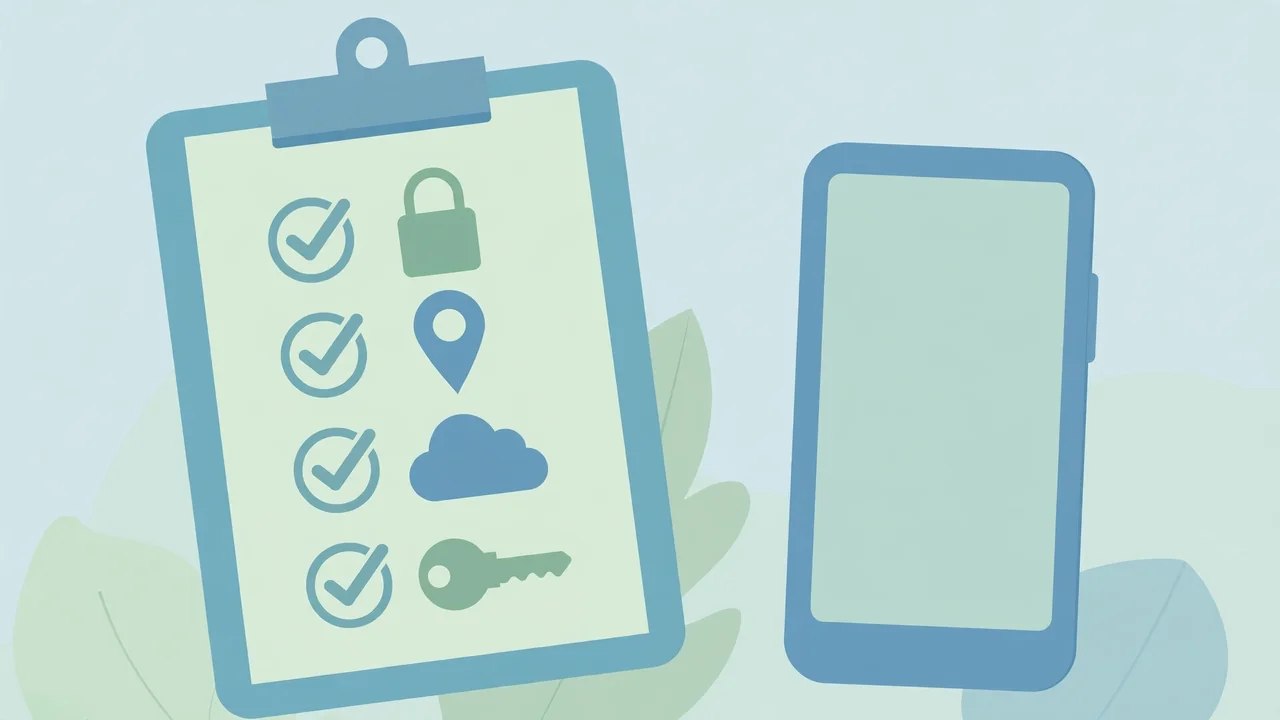
Every step in this guide works better when it was set up in advance. Turn on Find My or Find Hub, switch on the theft protection features, use a strong passcode with Face ID or Touch ID, keep a backup, and write down the IMEI and serial number somewhere safe.
| Set up now | Where to find it | Why it helps |
|---|---|---|
| Find My on iPhone | Settings, your name, Find My | Lock, locate, erase |
| Find Hub on Android | Automatic with a Google Account | Locate, lock, erase |
| Stolen Device Protection | iPhone Settings, Face ID and Passcode | Blocks passcode only changes |
| Theft protection on Android | Settings, Google, Theft protection | Theft Detection, Offline, Remote Lock |
| Strong passcode and biometrics | Face ID and Passcode; Screen lock | Blocks an unlocked phone |
| Automatic backup | iCloud Backup; Google backup | Restores data to a new phone |
| IMEI and serial number | Phone box, receipt, carrier account | Needed to block the phone |
| Verified number for Remote Lock | Android Settings, Theft protection | Locks phone from any browser |
| Carrier PIN and port out lock | Carrier account settings | Stops number moves |
| Passkeys and two-step verification | Apple Account; Google Account security | Safe if a password leaks |
Do this setup on a quiet evening. Test it once: open iCloud.com/find or android.com/find from a computer and confirm the phone appears on the map. If you move to a new phone, our Android password and passkey transfer guide explains the move. None of these settings can be switched on remotely after the phone is gone. That is why ten minutes today are the most useful part of phone stolen what to do.
Frequently asked questions
Q: What is the first thing to do when your phone is stolen?
A: Lock it remotely first. On iPhone, go to iCloud.com/find, sign in and choose Mark as Lost. On Android, go to android.com/find or open Find Hub and tap Mark as lost.
Q: Should I call the police or my carrier first?
A: Lock the phone first, then call your carrier, then report the theft to the police. That is phone stolen what to do in one sentence, and all three fit inside the first hour.
Q: Can I find my phone if it is turned off?
A: You can usually see its last known location, and the lock or erase request waits until the phone comes back online. If Find My or Find Hub was off, the phone will not appear at all.
Q: Should I erase my stolen phone right away?
A: Usually no. Wait while the location is fresh, and erase only when recovery looks unlikely or the phone holds sensitive data.
Q: What if Find My or Find Hub was turned off before the theft?
A: You cannot locate, lock or erase the phone remotely. Change your Apple Account or Google Account password right away, then email and banking passwords, call your carrier, and report the theft to the police with the IMEI number.
Q: Can a thief use my phone if they know my passcode?
A: They can open the phone, which is why Stolen Device Protection and Theft Detection Lock matter. Change your Apple Account or Google Account password at once and check the signed in devices list.
Q: How do I get my number back on a new phone?
A: Contact your carrier, confirm the suspension, and ask for a replacement SIM or eSIM on the same number. Ask them to keep the SIM swap or port out lock on the account.
Sources
- Apple Support, If your iPhone or iPad was stolen
- Apple Support, About Stolen Device Protection for iPhone
- Google Support, Find, secure, or erase a lost Android device
- Android, Stolen device and theft protection for mobile phones
- Federal Communications Commission, Protect Your Smart Device
- Federal Trade Commission, IdentityTheft.gov recovery steps