Switching password managers used to be a chore that many people put off. The old route often meant exporting logins to a file, importing that file into the new app, and then hoping nothing had been missed or left exposed. Passkeys made the problem worse, because a passkey could not be copied into a spreadsheet in the same way as a password. Google changed that part of the job on Android in September 2026 with a system transfer that moves passwords and passkeys directly between supported apps. This guide explains what the feature does, which managers support it, how to run a transfer, and what to check when it is done. The steps below follow Google’s own description first, then add app specific details from Dashlane where they help you complete the move on Android. It focuses on moving credentials between managers on one Android phone.
What changed on Android in September 2026
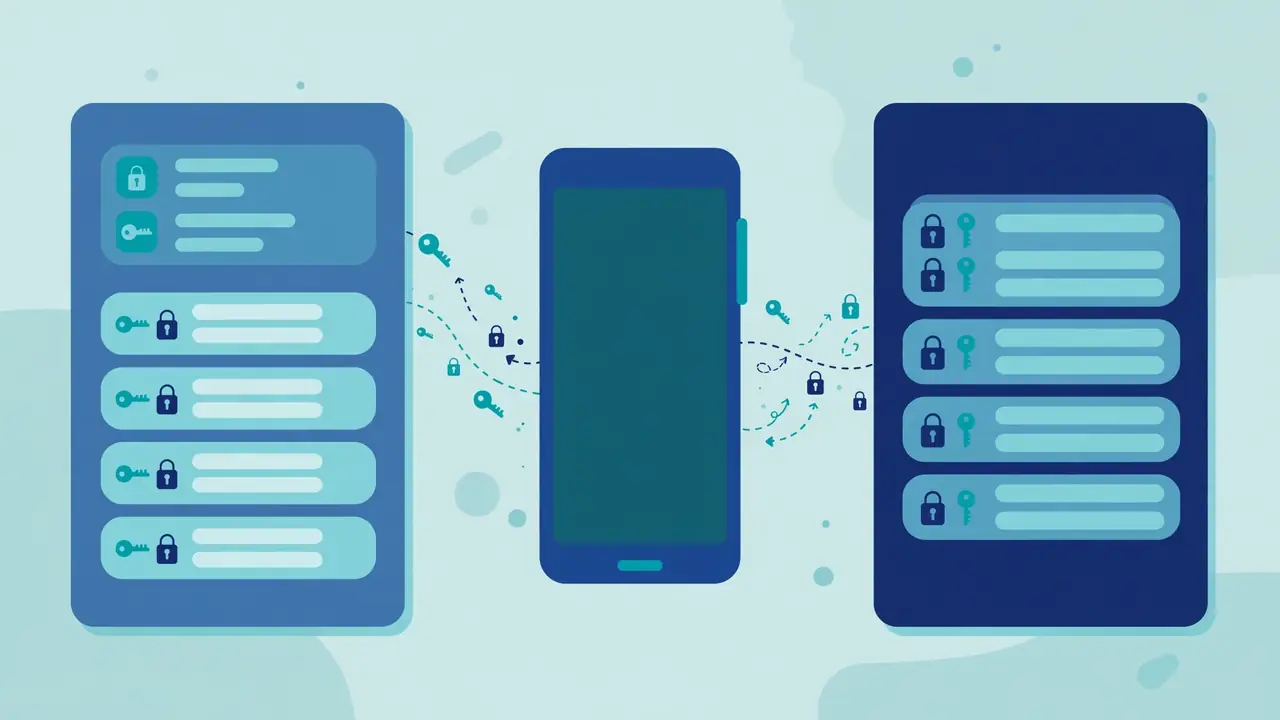
Google announced on September 10, 2026 that Android can now coordinate a direct transfer of passwords and passkeys between supported password managers, with no file download in between. You start in the new manager, Android finds the old manager on the same phone, and you review and approve the move there.
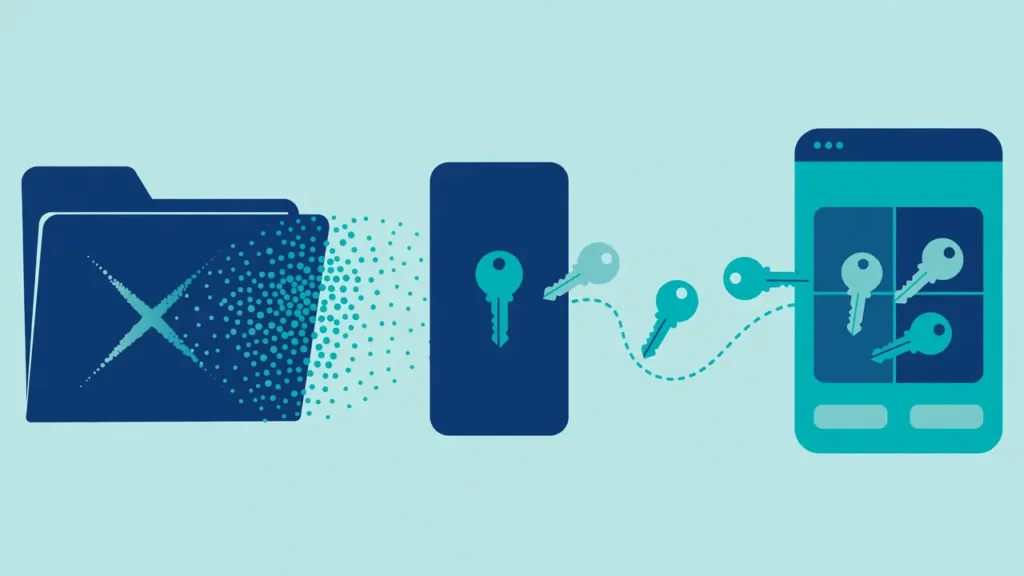
Before this change, Google said, moving passwords often meant downloading them into an unencrypted text file, which left them unprotected on the device. Passkeys could not be transferred at all in that old workflow, so people had to recreate them site by site. The new experience removes the file from the middle of the job. Android acts as the coordinator, while the two password manager apps remain the places where you choose, review and approve what moves. Google described the result as a transfer completed in a few seconds after approval, in just a few clicks.
Which password managers support the new transfer
At launch, Google named Google Password Manager, 1Password, Bitwarden Password Manager and Dashlane as the managers with the new Android transfer experience, and said more partners would follow. Both the source and the destination must support the flow, so check that both apps show the option before you begin.
That two sided requirement matters more than the headline list. If only the new manager supports the transfer, Android may not offer the old manager as a source. If only the old manager supports it, the new manager may not offer the import option that starts the handoff. Dashlane’s own support page lists 1Password, Bitwarden and Google Password Manager as participating managers on Android, which matches Google’s launch list from the Dashlane side. Google also said more partners would follow, but it did not name them or give dates in the announcement opened for this guide.
What can and cannot move in a transfer
Passwords and passkeys are the core items in the new Android transfer, according to Google. Dashlane adds that its Credential Exchange import can also cover verification codes and other item types, but the exact set depends on both apps. Notes, attachments, collections and some bank details may not move, so verify the list before you approve.
The gap between a standard and an app is the point to watch. The FIDO Alliance Credential Exchange Format defines data structures for accounts and items so that one provider can describe credentials in a way another provider can read. That does not force every app to move every item type. Dashlane, for example, says it does not support the transfer of Collections at this time, that bank account information is imported as a Secure Note, and that bank account information, custom text fields and file attachments are not included in transfers from other participating managers in the section covering imports into Dashlane. It also says folders from other managers will be imported as collections, with items added to an existing collection of the same name when one exists and is not shared. Read the review screen as the real list for your move, not as a formality.
Before you start: checks that prevent a failed transfer
Update both password managers, sign in to both on the same Android phone, set a screen lock, and keep the phone charged and connected where passkeys are involved. Google requires a screen lock for importing into Google Password Manager, and Dashlane says passkeys need an internet connection, so do these checks first.
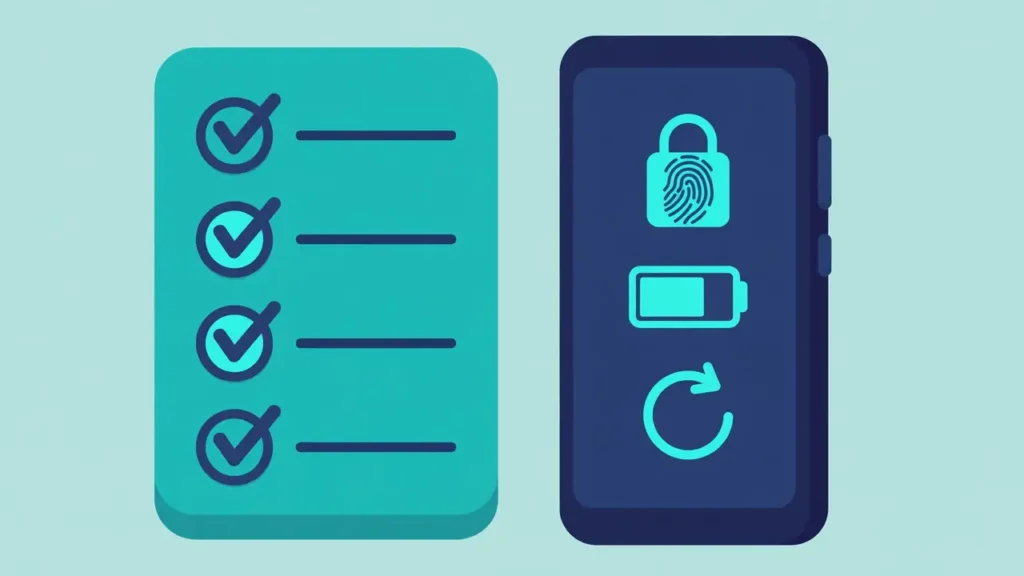
Start with the basics that are easy to miss. Both apps must be installed and signed in on the same phone, because the Android flow described by Google moves data between apps on that device. It is not a cloud sync between a phone and a computer. Next, update both apps to their latest versions, since support for a new transfer flow can arrive in an app update rather than in an Android system update alone. Then confirm your screen lock. Google’s Chrome Help page says you need a screen lock, such as a PIN, pattern or fingerprint, to import passwords into Google Password Manager, and that you will be asked to set one up if you do not have one.
How to transfer passwords and passkeys step by step
Open the new password manager and choose its import or copy option, then let Android detect the managers installed on your phone. Tap Continue, move to the old manager when Android prompts you, select and review the items, approve the transfer, and wait for the confirmation screen before you close either app.
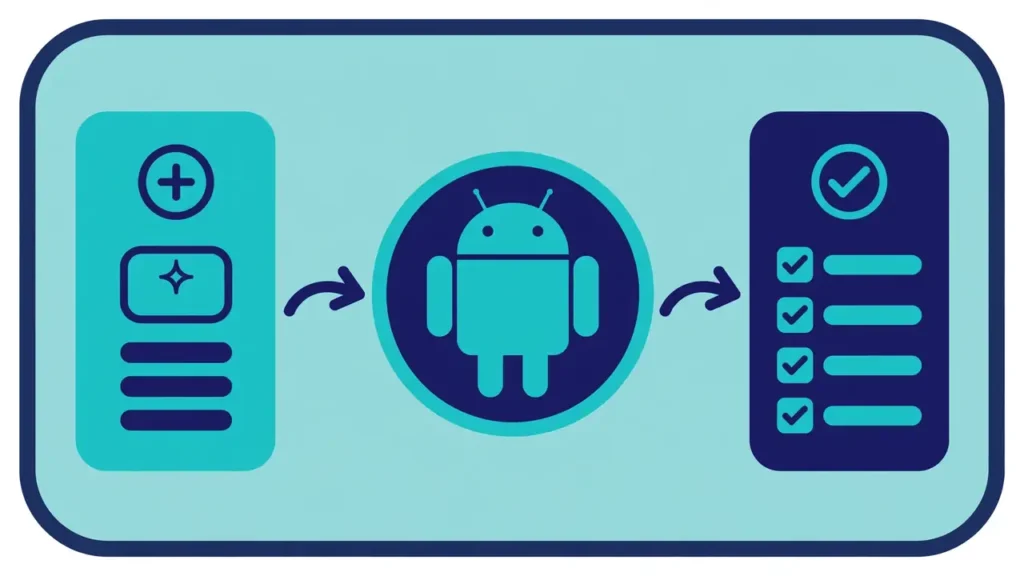
Google lays out the same flow in three parts. First, you open the new password manager app and choose the option to import or copy passwords and passkeys from another provider, and that app hands the task over to Android. Second, Android detects existing password managers on your device and shows you which ones you can import from. Third, once you tap Continue, Android brings you to your existing password manager to select, review and authorize the transfer, and then the data moves between the apps. Do not close either app during that handoff.
How to move credentials into a new manager
Start in the new manager, whether that is Google Password Manager, Dashlane, 1Password or Bitwarden, and use its import option. Google’s steps use Settings then Import passwords and passkeys, Dashlane uses Vault, Logins, Add new and Import multiple items, and other apps use a similar import or migrate option.

For Google Password Manager, open it, tap Settings, then Import passwords and passkeys, verify your identity with your screen lock, choose the source manager, sign in there, and approve the export. If you import passkeys, you may be prompted to enter a recovery key. Google says duplicate passwords already saved there will not be added again, and it warns you to trust the third party manager before you import. If no passwords are found, or if the data is broken, Google says the import might not work, and you should make sure the other app is set up correctly.
In Dashlane on Android, go to Vault, then Logins, choose Add new and Import multiple items, then select From another password manager and Start import. Only participating managers will be listed, and if none exist, Dashlane directs you to a CSV import instead. You then select the items you want and tap Import, and you get a confirmation when it finishes. Dashlane says Android helps delete most duplicate items, but duplicates might still appear. For 1Password and Bitwarden, use the import or migrate option in the destination app and follow the same pattern: start in the new app, let Android present the source, and approve in the old app.
What to do if your password manager is not listed
If your old manager does not appear, it has not added support for the new Android transfer yet, or one app is out of date. Update both apps, check the source manager’s support page, and use its CSV export only as a fallback, knowing passkeys will not move in a CSV file and you must delete that file afterward.

Start with the simplest causes. Update both apps, restart the phone if an update has just installed, and confirm that both apps are signed in. Then look for the import option in the new manager rather than an export option in the old manager, because Google’s flow starts in the destination app. If the source still does not appear, check the source manager’s support pages for Credential Exchange or for Android transfer support, and do not rely on a general claim that it supports passkeys. Supporting passkeys for sign in is not the same as supporting a direct transfer to another manager. If no direct route exists, plan the CSV fallback in the last section of this guide, and plan time to recreate passkeys that cannot move in a file.
How to check the transfer and clean up safely
After the confirmation screen, open the new manager and test a few logins, starting with email, banking and work accounts, and check that passkeys still sign you in. Keep the old manager installed until those checks pass, then remove duplicate or unwanted items carefully, and only then decide whether to delete the old vault.
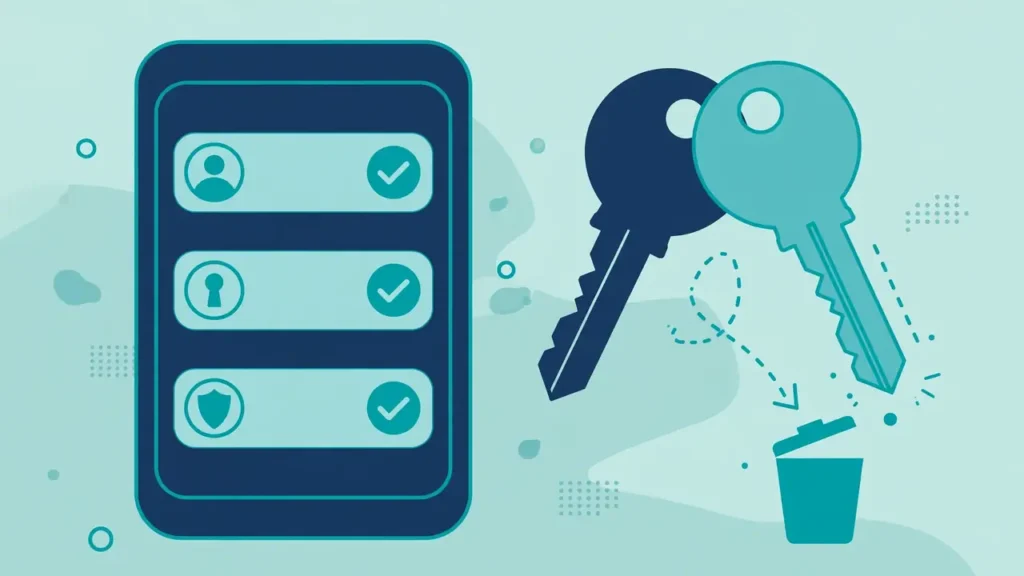
Testing matters because a transfer can look complete while one account still fails. Sign in to your email first, since email often controls password resets for other accounts. Then test banking and work accounts, and test at least one passkey sign in rather than assuming every passkey moved. If a passkey fails, create a new passkey for that site in the new manager and remove the old one from the site’s security settings when you are sure the new one works. Check for duplicates next, since Dashlane warns that duplicates might still appear even with automatic handling. Only after those checks should you remove the old manager or delete its vault, and only if you are sure you no longer need anything that was left behind. If you keep a phone backup, note that a full device backup is a separate job from a manager to manager transfer, as covered in the Android phone backup guide linked below.
When to use a CSV export instead, and when not to
Use a CSV export only when the direct Android transfer is not available, and treat it as a limited fallback for passwords. Google warns that an undeleted CSV file leaves passwords readable on the device, and passkeys cannot move this way, so delete the file right after import and recreate any missing passkeys in the new manager.
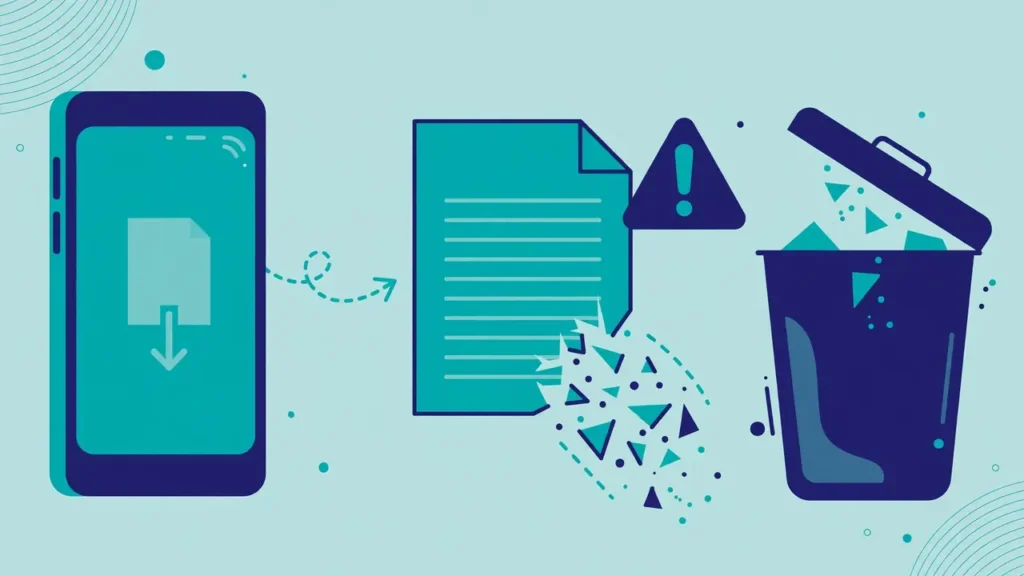
Google’s Chrome Help page still describes the CSV route for passwords: export from the other app as a CSV file, import it on Android, and then delete the file. Its warning is blunt. If you do not delete the password file, anyone who uses the device can open the file and access your passwords. That risk is the reason the direct transfer exists. A CSV file also cannot carry passkeys in the way the new flow can, so anyone who relies on passkeys should expect extra work after a CSV move. Use the CSV route only for passwords, only on a phone you control, and only when you can delete the file immediately after import and confirm the import worked. For most people with two supported managers, the direct transfer is the safer and simpler choice.
Frequently asked questions
Can I transfer both passwords and passkeys on Android at the same time?
Yes, when both managers support the new Android transfer. Google’s September 10, 2026 announcement describes a single flow that moves passwords and passkeys together, with no file download in between. The exact items still depend on both apps, so review the list before you approve.
Do both password managers need to support the transfer?
Yes. The destination manager must offer the import option that starts the Android handoff, and the source manager must appear as a supported source on your phone. If either side lacks support, Android will not offer that pairing as a direct transfer.
Will the transfer work if I change phones at the same time?
No, not as described by Google. The new flow moves credentials between two apps on the same Android phone. Moving to a new phone is a separate step, and you should complete the manager transfer first or use each manager’s own account sync and device move tools, then test sign in on the new phone.
Why does Android ask me to approve the transfer in the old manager?
Approval in the old manager proves that the person holding the phone controls the vault that is giving up the credentials. Google’s flow sends you back to the existing manager to select, review and authorize the transfer, rather than letting the new app pull data without that check.
What happens to duplicates after a transfer?
It depends on the destination. Google says duplicate passwords already in Google Password Manager will not be added again. Dashlane says Android helps delete most duplicate items, but duplicates might still appear. Check the new vault after the move and remove duplicates by hand where needed.
Can I use a CSV file to move passkeys?
No, not in the way the direct transfer can. Google’s older workflow left passkeys behind, because they could not be transferred through a file and had to be recreated. A CSV export remains a fallback for passwords only, and the file must be deleted right after import.
What should I do if a passkey does not work after the transfer?
Create a new passkey for that site in the new manager, test sign in with it, and then remove the old passkey from the site’s security settings. Do not delete the old manager or its vault until you have tested the accounts that matter most, including email and banking.
Sources
- Google, Securely switch password managers on Android, September 10, 2026: https://blog.google/products-and-platforms/platforms/android/switch-password-managers/
- Google Chrome Help, Import or export passwords and passkeys with Chrome: https://support.google.com/chrome?p=credential_exchange_android
- Dashlane Support, Import your data to Dashlane using the Credential Exchange Protocol (CXP): https://support.dashlane.com/hc/en-us/articles/32779418812050-Import-your-data-to-Dashlane-using-the-Credential-Exchange-Protocol-CXP
- Android Developers, About Credential Manager: https://developer.android.com/identity/credential-manager
- FIDO Alliance, Credential Exchange Format: https://fidoalliance.org/specs/cx/cxf-v1.0-ps-errata-20260309.html
Related on TechNewsNest:
- Android phone backup guide: https://technewsnest.com/android-phone-backup-before-update-reset/
- Android 16 features guide: https://technewsnest.com/android-16-what-changed/