
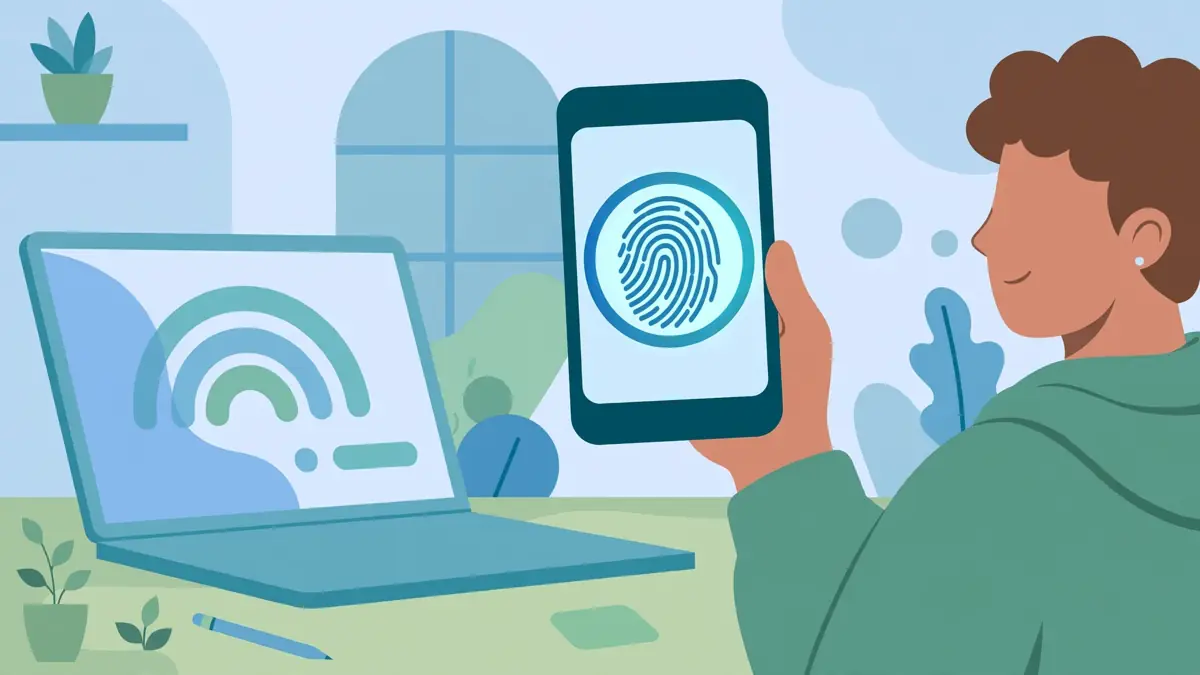
A password can be long, hard to remember, and easy to reuse on more than one site. A passkey changes that routine. It lets you sign in to your Google Account the same way you unlock your phone or computer, with a fingerprint, a face scan, or a device PIN. You do not type a secret that a fake site can copy, and you do not need to remember a new string of characters for this one sign in.
Google introduced passkeys for Google Accounts on World Password Day in 2023. In October 2026, during Cybersecurity Awareness Month, Google again pointed users to a short setup route: visit g.co/passkeys, select Create a passkey, and follow the prompts. This guide follows only that documented route and the detailed Google Account Help page.
The exact prompt you see will vary by device and browser. Your phone, computer, browser, and credential manager each handle part of the prompt, so wording and screen order can differ while the result stays the same.
What a passkey is
A passkey is a sign in credential that replaces a typed password for your Google Account. You unlock it with your fingerprint, face scan, or device PIN, the same screen lock you already use. Google says your biometric data stays on your device and is never shared with Google.
A passkey is not a password written in a new format. It is a credential created on your device for one account on one service. When you create it, your device and Google complete a setup that lets your device prove it is yours at sign in, without you sending a reusable secret. That is why a passkey feels familiar. You are not learning a new code. You are using the unlock method you already trust to open your phone or computer, now applied to your Google Account.
Google describes passkeys as an easier and safer way to access online accounts than passwords, and even than some traditional multi factor methods such as one time passwords. At sign in, you present your unlocked device, not a secret you must recall or type.
Why a passkey is safer than a password
A passkey is safer because it cannot be shared, copied, written down, or accidentally given to someone else. Google states this directly in its Account Help page. A password, by contrast, can be typed into a fake page, reused on another site, or stolen in a data breach.
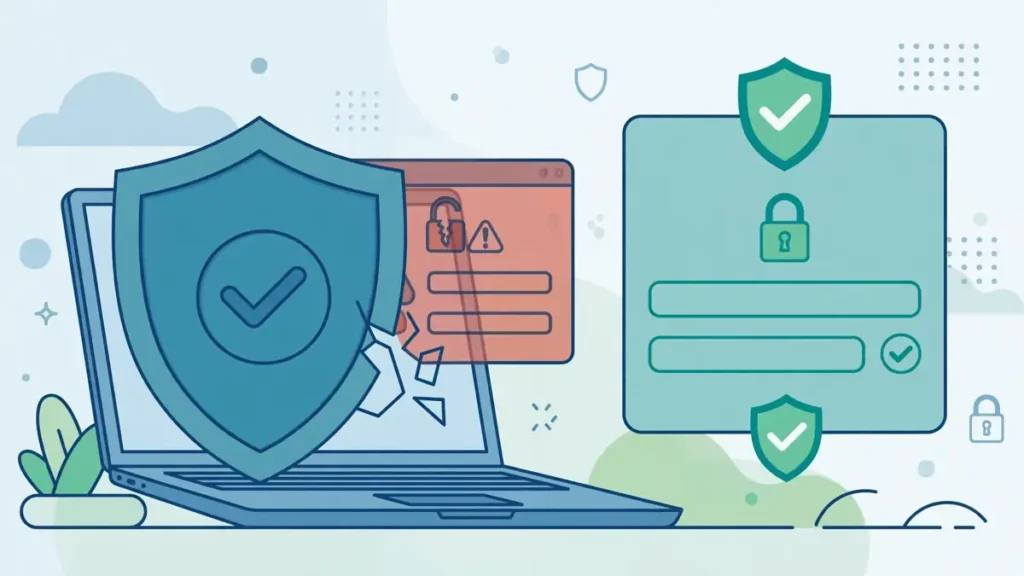
Phishing works by tricking a person into handing over a secret. A fake sign in page can look close enough to the real one that a careful person still types a password. With a passkey, there is no secret to type. The credential is tied to the real Google sign in service, so it does not transfer to a lookalike page in the same way. Google also notes that passkeys are designed to resist common online attacks like phishing.
That protection does not make your device unimportant. It makes your device lock more important. Anyone who can unlock your device may be able to use a passkey stored on it, as Google warns. A strong device lock and a PIN you do not share remain part of the plan.
Before you create a passkey
Before you create a passkey, check that your device, browser, and screen lock meet Google’s published requirements. You need a supported device and browser, a screen lock turned on, and, on Apple devices, iCloud Keychain enabled so the passkey can be stored and used as Google describes.
Google lists these supported devices: a computer running at least Windows 10, macOS Ventura, or ChromeOS 109; a phone running Android 9 or iOS 16 or later; or a hardware security key that supports the FIDO2 protocol. Supported browsers are Chrome 109 or later, Safari 16 or later, Edge 109 or later, and Firefox 122 or later. Google also advises keeping your operating system and browser up to date, and notes that on some systems you may not be able to create or use passkeys while in Incognito mode.
Turn on your phone screen lock before you start. To use a passkey on a phone to sign in to another computer, turn on Bluetooth. For iPhone, iPad, and macOS devices, turn on iCloud Keychain. Google says setup will prompt you to turn on iCloud Keychain if it is not set up already. Use only a device you personally own and use, never a shared device.
How to create a passkey for your Google Account
To create a passkey, visit g.co/passkeys, select Create a passkey, and follow the prompts shown by your device and browser. That is the route Google gives in its October 2026 blog post. You may need to sign in to your Google Account or verify your identity first.
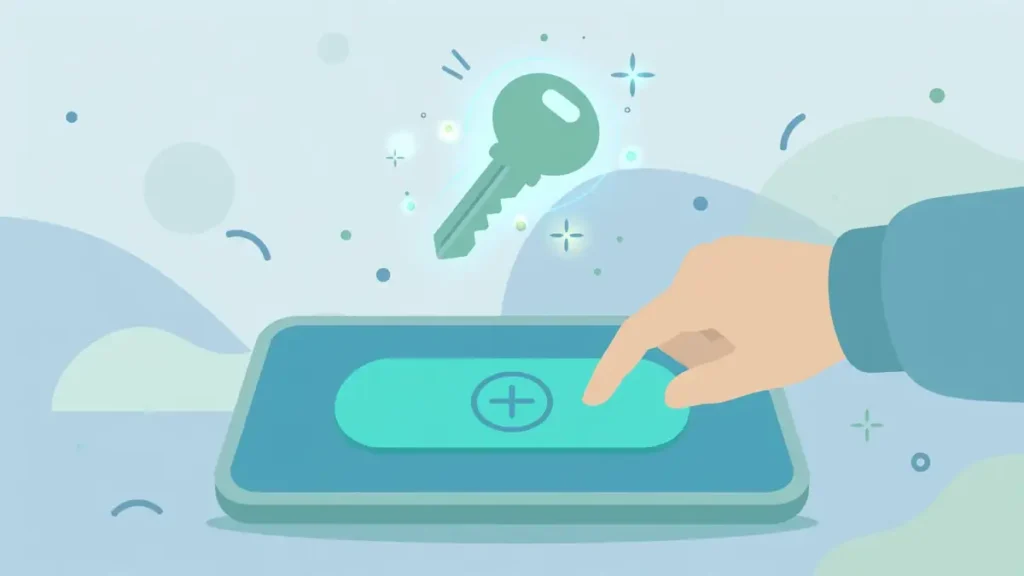
Follow the on screen prompts exactly as they appear. Your device will ask you to confirm with your fingerprint, face scan, or PIN, depending on the screen lock you use. Do not rush past a prompt that asks where the passkey should be stored or which account it belongs to. If you are signed in to more than one Google Account, check that you are creating the passkey for the account you intend to use.
Once you create your first passkey, Google says your next sign in on a device that supports passkeys may prompt you to create one for that device. Create passkeys only on devices you own and control. Creating a passkey also opts you in to a passkey first sign in by default, though you can still choose the password option.
How to sign in with a passkey on the same device
To sign in on the same device, open the Google sign in page, enter your username, and follow the prompts to verify your identity. If a list of passkeys appears when you tap the username field, tap the passkey you want to use.
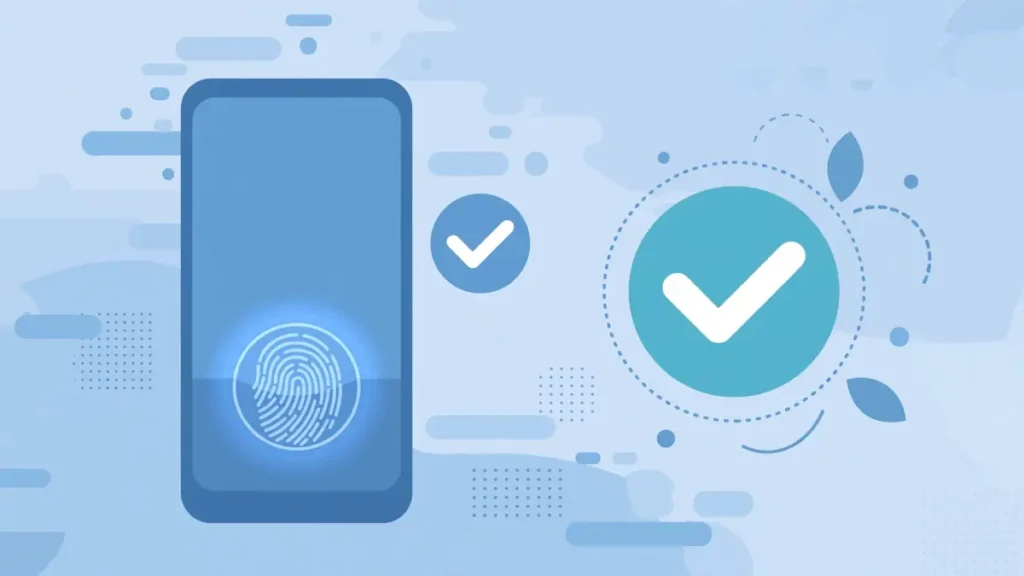
Your operating system and browser give the on screen passkey instructions, so the prompt may look different on Android, iPhone, Windows, or Mac. In each case, the action is the same: unlock your device with your fingerprint, face scan, or PIN to confirm that you are the person who controls it. Google states that using a passkey at sign in means you have access to your device and are able to unlock it.
If you previously created a passkey on that device, the sign in should feel close to unlocking the device itself. Do not share your device PIN or unlock method to make a sign in faster for someone else.
How to sign in on a computer with your phone passkey
You can sign in on a computer with a passkey stored on your phone, as long as the computer supports passkeys and Bluetooth is on. On the computer sign in page, enter your username, select Try another way and then Use your passkey, and scan the QR code that appears with your phone.
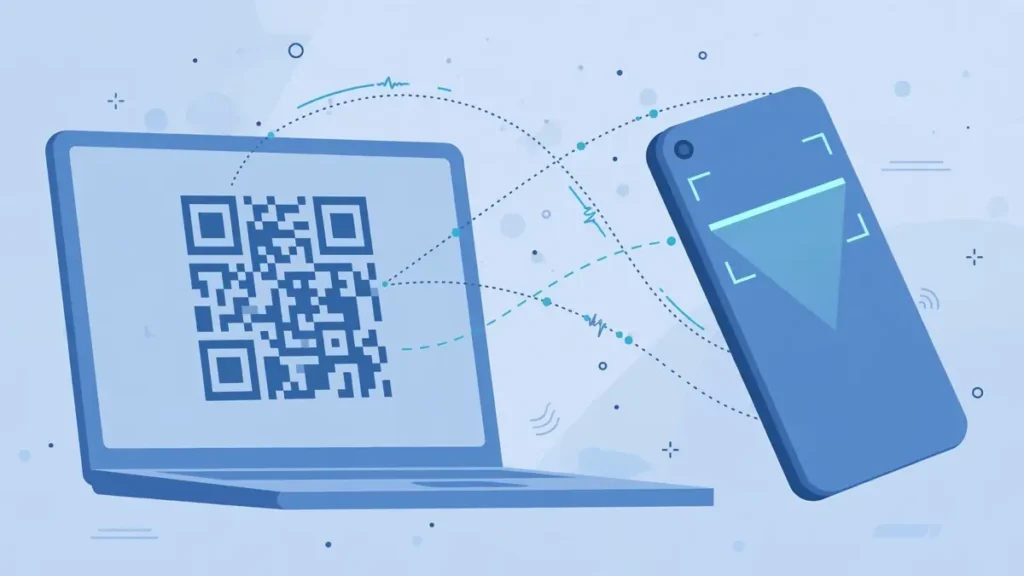
After you scan the QR code, tap Use passkey to sign in on an Android phone, or Sign in with a passkey on an iPhone or iPad, then verify your identity on your phone with your fingerprint, face unlock, or PIN. Google says the next time you use the same computer and phone combination, you will automatically get a phone notification to verify your identity.
This method helps when the computer has no passkey of its own. Check that Bluetooth is on, keep your phone nearby, and do not approve a phone prompt you did not start. If you use a hardware security key, Google says you will have an option to select it.
How to check, manage and remove a passkey
You can check your passkeys in your Google Account sign in options at myaccount.google.com/signinoptions/passkeys. Sign in, verify your identity if asked, and review the passkeys listed for that account, especially if you use more than one Google Account. Review it after a device change, and remove entries you no longer recognize.
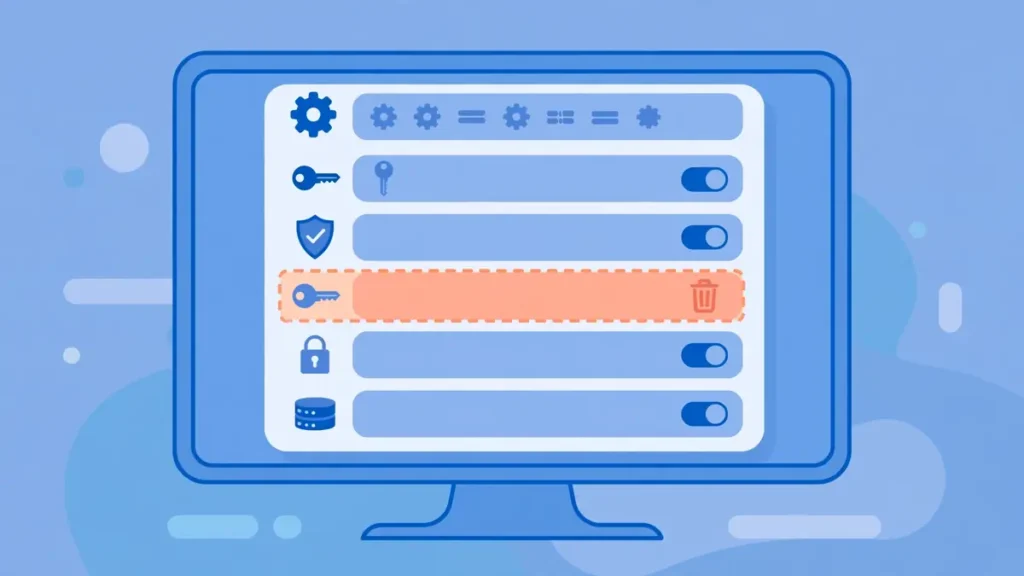
This check matters after you get a new phone, replace a computer, or accept a prompt to create a passkey on a device you no longer use. Google says that if you have an Android device signed in with the account, you may have passkeys automatically registered for you, so a list may include entries you did not create by hand. Review each entry, and remove any passkey tied to a device you no longer own or control.
Remove the passkey in your Google Account, and if you are still prompted to use it at sign in, check any third party credential manager you use and remove it there, following that manager’s documentation. To review all devices with account access, Google points users to google.com/devices.
What to do if you lose a device or a passkey stops working
If you lose a device, remove its passkey from your Google Account and review your other sign in and recovery options promptly. Adding a passkey does not change or remove any authentication or recovery factors already on your account, according to Google, so your other recovery options remain available.
Start from a device you still control. Open your passkey list, remove the entry for the lost device, and check the devices with account access. A passkey on a device you no longer control is a sign in route you no longer control.
Google also gives timing rules that explain some delays. You may need to wait 7 days before a newly created passkey is available at sign in, although a trusted passkey or security key you already have may speed up that process. If Google detects a suspicious passkey, it will disable it and notify you, and you have 30 days from the warning to confirm you added it, or it will be deleted. For related planning, see the Android backup guide on TechNewsNest before a reset or a device change: https://technewsnest.com/android-phone-backup-before-update-reset/
Passkeys, passwords and 2-Step Verification together
Adding a passkey does not remove your password or your recovery options, and it does not turn off 2-Step Verification. Google states that a passkey does not change or remove any authentication or recovery factors already on your account, and that it can speed up adding some trusted factors.
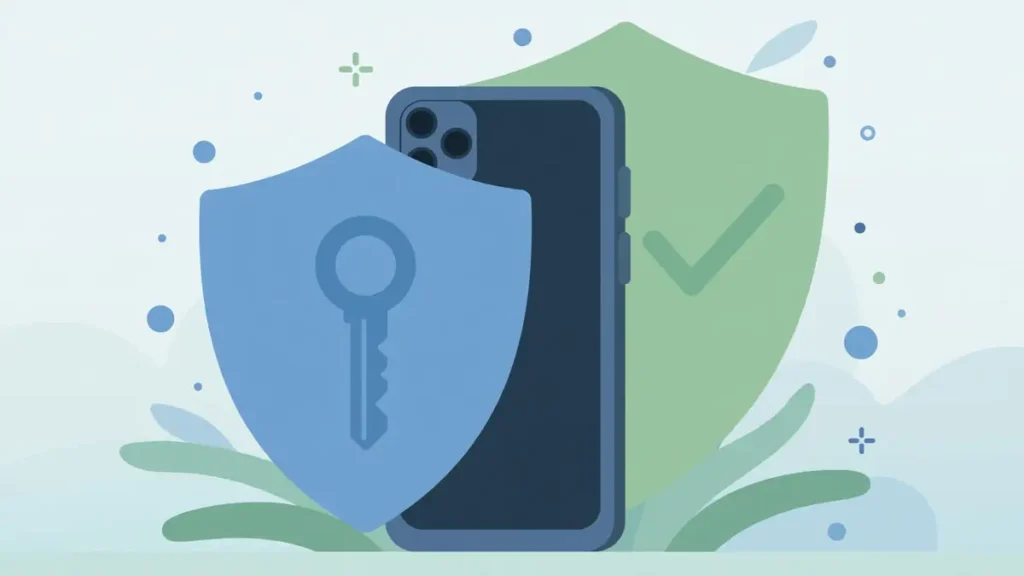
For accounts with 2-Step Verification or Advanced Protection, Google says a passkey bypasses the second authentication step at sign in, because the passkey itself verifies that you own the device. That is a change in the sign in flow, not a removal of protection. The device check replaces the second step in that flow, and your other factors remain in place for recovery and for other account actions.
Google also notes that you can verify it is you with a passkey when you make sensitive changes. Keep 2-Step Verification turned on, as Google recommends in its World Password Day post, even when you normally use a passkey.
Common passkey problems and fixes
Most passkey problems come from an unsupported device or browser, a missing screen lock, or a prompt on the wrong account. Check the published requirements first, update your system and browser, turn on your screen lock, and confirm you are signed in to the intended Google Account.
If a new passkey does not appear at sign in, remember Google’s 7 day note: a newly created passkey may need up to 7 days before it is available, unless a trusted passkey or security key speeds up the process. If you signed out of an Android device, Google gives a narrower rule: you can sign in again with your passkey on that device for up to 6 hours after sign out, then you need another method, and signing in again generates a new passkey while the old one expires. On a non Android device, Google says you can sign in again with your passkey at any time after sign out.
If you want your password to appear first by default instead of a passkey, Google documents that choice: sign in, tap Security and sign in, and under How you sign in to Google, turn off Skip password when possible. After that change, sign in will prompt for your password, and if you use 2-Step Verification, you can use any of your passkeys as the second step. For Android system context, see the Android 16 guide on TechNewsNest: https://technewsnest.com/android-16-what-changed/
Frequently asked questions
Do I still need my Google password after I create a passkey?
No, not for every sign in, but your password and recovery options stay on your account. Google says creating a passkey opts you in to a passkey first sign in by default, while still leaving a password option available when you choose it.
Can I create a passkey on a shared computer?
No, you should not. Google warns that you should only create passkeys on devices you personally own and use. Anyone who can unlock that device could then access your Google Account, even after you sign out.
Does Google receive my fingerprint or face scan?
No. Google states that biometric data used for fingerprint or face unlock stays on your device and is never shared with Google. The fingerprint or face scan unlocks the passkey locally, and Google receives proof from the device, not the biometric data itself.
What happens if I lose my phone?
Remove the passkey for that phone from your Google Account using a device you still control, and review your devices and recovery options. Your existing authentication and recovery factors remain in place, because adding a passkey does not remove them.
Why is my new passkey not working right away?
Google says you may need to wait 7 days before a newly created passkey is available at sign in. A trusted passkey or physical security key you already have may speed up that process, so check your passkey list and try the other sign in options Google offers.
Can I use a passkey on a computer if the passkey is on my phone?
Yes, if the computer supports passkeys and Bluetooth is on. Enter your username on the computer, choose Try another way and Use your passkey, scan the QR code with your phone, and confirm on your phone with your fingerprint, face unlock, or PIN.
Can I turn off passkey first sign in and use my password first?
Yes. Sign in to your Google Account, open Security and sign in, and under How you sign in to Google, turn off Skip password when possible. You will then be prompted for your password first, and you can still use a passkey as a second step with 2-Step Verification.
Sources
- Google. How to set up a Google Account passkey. Published 2026-10-08. https://blog.google/innovation-and-ai/technology/safety-security/how-to-set-up-passkey/
- Google. World Password Day: Keep your passwords and accounts safe with these 5 Google products. Published 2026-05-07. https://blog.google/innovation-and-ai/technology/safety-security/world-password-day-2026/
- Google Account Help. Sign in with a passkey instead of a password. https://support.google.com/accounts/answer/13548313



1 comment