
The Gemini app for Mac gained a new skill on 19 November 2026. Google calls it computer use, and it lets Gemini carry out multi-step jobs across your local files, desktop apps, and the web. You describe the job in plain words, and Gemini handles the clicking, typing, menus, and forms. The work happens in an isolated background window with a live preview in your chat, so your screen and cursor stay free. This guide covers setup, the first tasks worth trying, the limits, and the privacy settings, and a short comparison with the ChatGPT Mac app.
Check first whether your Mac and account qualify

You need an Apple Silicon Mac running macOS Sequoia 15.0 or later, with at least 8 GB of RAM and 200 MB of disk space. Computer use also needs a personal Google account for someone aged 18 or older, and a Google AI Plus, Pro, or Ultra plan. It is rolling out in English in the United States first.
Intel Macs cannot run the Gemini app for Mac at all, and a Mac running macOS Sonoma 14 or older cannot install it either. To check your own Mac, open the Apple menu and choose About This Mac. The chip line should name an M1, M2, M3, M4, or later processor, and the macOS line should read 15.0 or higher. If either line falls short, use Gemini on the web at gemini.google instead.
The account and plan rules matter just as much. Computer use needs a personal Google account held by someone aged 18 or older, and a paid Google AI plan. Google AI Plus costs $4.99 a month in the United States, Pro costs $19.99 a month, and Ultra starts at $99.99 a month, according to MacRumors and plan trackers that checked Google’s plans page in November 2026. Free Gemini users do not get computer use, and Google has not said when it will reach other countries. The rollout is gradual, so even an eligible account may not see the feature on day one.
Install the Gemini app for Mac in five steps
Download the app from gemini.google/mac, open the disk image, drag Gemini to your Applications folder, open it, and sign in with your Google account. The download is free, and the whole install takes a few minutes on a normal connection.
Google’s own help page lists the install in five steps. First, open your web browser and go to gemini.google/mac. Second, click Download for Mac. The installer file, a .dmg, downloads to your Downloads folder. Third, open the .dmg file when the download finishes. Fourth, drag the Gemini icon into your Applications folder. Fifth, open your Applications folder, double-click Gemini, and sign in with your Google account if prompted. Google launched the native Mac app on 15 April 2026.
Press Option and Space to bring up the Gemini chat window from anywhere on your Mac. Keep the app current, because some features do not work on an out of date install. To check for updates, open the Gemini app, click Gemini in the top menu bar, then click Check for Updates.
Switch on computer use and connect your desktop apps
Type @Computer use at the start of your prompt, then describe the job. Before your first task, open Customize, then Connectors, and choose which desktop apps Gemini may use. Google lists Blender and Autodesk Fusion among the new desktop connectors, alongside the existing Git and Obsidian integrations.
You ask for it in each prompt by adding @Computer use, which tells Gemini that this request may involve clicking and typing inside other apps. The Connectors menu is where you decide how far that reach extends. In Customize, then Connectors, you will see a Desktop section with apps such as Blender and Autodesk Fusion, joining the Git and Obsidian integrations that were already there. Connect only the apps your tasks actually need.
The existing Task feature, previously called Gemini Spark, could reach local files together with Connected Apps such as @Gmail and @Google Calendar, according to 9to5Google. Computer use goes further: Gemini can now operate the apps themselves, moving through menus and filling in forms. Google also rolled out its broader Tasks feature more widely in the same week, which TechCrunch describes as helping with website sign-ins, online purchases, and appointments.
Write the prompt, then watch it work in the background

Name the files, the app, and the result you want, in that order. Then watch the live preview in your chat while Gemini works in its own background window. Your screen and cursor stay free, and you can pause or stop the task at any time.
Write the prompt the way you would brief a careful assistant who cannot see your screen. For example: “@Computer use. In my Downloads folder, open the 12 product photos in the folder named lamp photos. In my photo editing app, apply the same warm color grade to each one and export them as JPEG files to a new folder called lamp listings.” That prompt names the folder, the app, the change, the format, and the destination. Give one job per prompt and say what done looks like. “Export 12 JPEG files to the lamp listings folder” is a result you can check in seconds.
Most computer control tools take over your pointer. Google’s design does the opposite. Michael Friedman, Group Product Manager for the Gemini app, wrote in Google’s announcement that Gemini works inside an isolated background window with a live preview right in your chat.
The live preview is also your control panel. You can watch every step as it happens and pause the task at any time. 9to5Google reports that you can stop Gemini with one click, and that Google pauses for logins and payments, with confirmation needed for sensitive actions. If the preview shows Gemini opening the wrong app or folder, stop it right away.
Four jobs worth trying first

Start with the examples Google published: batch color grading in a photo app, pulling weights and addresses from PDFs into shipping quotes, turning dashboard screenshots into a Google Slides deck, and staging resale listings from a folder of clothing photos.
Google’s announcement lists four example workflows.
Batch color grade a set of photos
Ask Gemini to apply the same color grade to every photo in a folder, then export the results. Tell Gemini the folder, the look you want, and the export format. Check a few exported photos before you trust the whole batch.
Fill in shipping quotes from PDF files
Ask Gemini to read weights, dimensions, and addresses from local PDF files and enter them into a multi-box shipping quote form. Keep the PDFs in one folder, name the shipping site, and stay nearby to confirm the quote and any payment yourself.
Turn dashboard numbers into a slides deck
Ask Gemini to pull metrics and screenshots from live dashboards across several regions and build a presentation in Google Slides. Give Gemini the dashboard addresses, the regions you need, and the number of slides you expect. Then check every number against the dashboard before you present it.
Stage resale listings from a folder of photos
Ask Gemini to analyze clothing photos from a local folder, research pricing, log the item details, and stage listings on a resale platform. Be specific about the platform, the condition of each item, and the price range you will accept. Review each staged listing before anything goes live.
What Gemini cannot do on your Mac

Gemini pauses for logins and payments and asks you to confirm sensitive actions, so it will not sign in to accounts or spend money on your behalf. It also works only in the apps you allow, only in English in the United States for now, and only for paying subscribers.
The limits are part of the design, not a flaw in your setup. Google will pause for logins and payments, with confirmation needed for sensitive actions, according to 9to5Google. That means a task that reaches a sign in screen or a checkout page stops and waits for you. Do not start a task that needs a login and walk away expecting it to finish.
The rollout limits are just as firm. Computer use is rolling out in English in the United States, and Google has not announced a date for other countries or for Windows. TechCrunch notes that the company did not say when it would expand to other markets or platforms. Free Gemini users are outside this release entirely, and so are work and school accounts. Google has also published no success rates, benchmarks, or task completion times for computer use. Treat the first run of any new task as a test.
Privacy and permissions: what to allow and what to keep closed
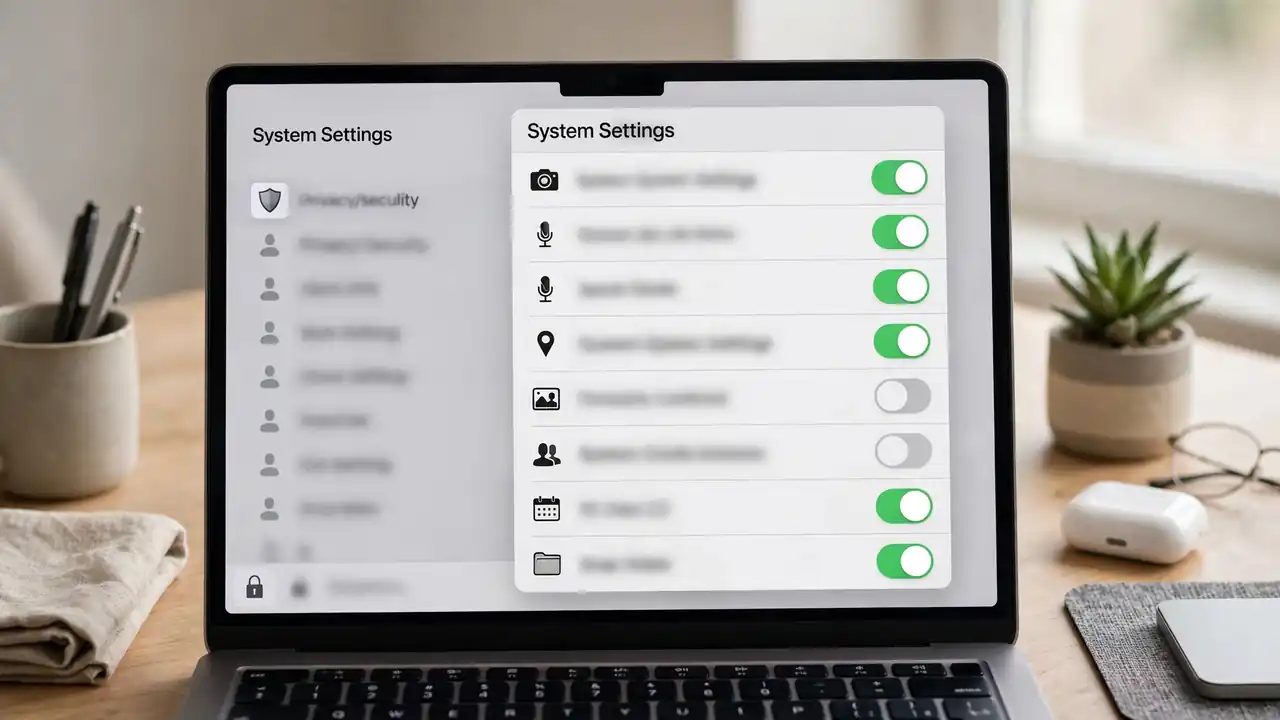
You decide which apps Gemini can open, you watch every step live, and you can pause or stop the task at any time. Keep the list of allowed apps short, keep sensitive apps closed while a task runs, and review the permissions in macOS System Settings after setup.
Google’s announcement puts three controls in your hands: you choose which apps Gemini can access, you watch every step live, and you approve key actions before they happen. In Customize, then Connectors, allow only the apps a task needs. Keep sensitive apps closed while a task runs, such as your password manager and your banking app.
macOS has its own layer of protection, and it is changing. MacRumors reports that Apple is preparing new warnings for apps that request full disk access on the Mac, because of the risks from AI agents that can operate a computer. With macOS 27.3, users will be able to limit access to specific apps and folders and set apps to ask permission each time, with a transparency indicator showing when one app is controlling another. Open System Settings, then Privacy and Security, and check which apps hold Full Disk Access and Accessibility permission. For more on how Gemini’s models have developed, see our coverage of Gemini 3 and Gemini 4.
How the Gemini app for Mac compares with the ChatGPT Mac app

Both apps now offer computer use on the Mac, and both use the same Option and Space shortcut. Gemini needs an Apple Silicon Mac and a paid Google AI plan, while ChatGPT runs on macOS 14 or later, supports Intel Macs, and offers a free tier with paid features on top.
OpenAI rebuilt its Mac app on 9 July 2026, combining Chat, Work, and Codex in one desktop app. OpenAI’s documentation, as summarized by independent Mac guides, says the ChatGPT Mac app needs macOS 14 or later, runs on Apple Silicon or Intel processors, and opens its Chat Bar with Option and Space. Its Computer Use asks before using each app unless you choose Always allow, and it cannot approve security or privacy prompts or automate terminal apps.
Gemini keeps its work in an isolated background window with a live preview in your chat, so your own screen and cursor stay free. ChatGPT’s Computer Use runs on your active desktop, though it can keep working in the background. Gemini’s computer use is limited to paying subscribers in the United States at launch, while ChatGPT offers a free tier and sells Plus at $20 a month. For a fuller head to head, see our Gemini vs ChatGPT comparison.
| Gemini app for Mac | ChatGPT Mac app | |
|---|---|---|
| Mac needed | Apple Silicon only | Apple Silicon or Intel |
| macOS needed | Sequoia 15.0 or later | 14 or later |
| Free tier | App is free, computer use needs a paid plan | Free tier available |
| Paid plans start at | $4.99 a month for Google AI Plus | $20 a month for ChatGPT Plus |
| How tasks run | Isolated background window with live preview | On your desktop, can continue in the background |
| App permission | You choose which apps Gemini may use | Asks before each app unless you choose Always allow |
Is a paid plan worth it for this feature alone

It depends on how often you repeat the same multi-step job. If you batch process photos, fill in shipping forms, or build decks from dashboards every week, the time saved can cover the $4.99 a month starting price. If you only want an occasional chat, the free Gemini app already covers that.
Start with the free app before you pay for anything. Download the Gemini app for Mac and try it for ordinary chats and summaries first. If you need a Mac that qualifies, our MacBook Pro M5 coverage explains the current Apple Silicon lineup, and our touchscreen MacBook Pro report looks at future hardware. One shipping quote a month will not repay a subscription, however cheap it is. Ten quotes a week, a weekly deck built from three dashboards, or a daily batch of product photos is a different story.
Check availability before you subscribe. Computer use is rolling out gradually in English in the United States, so confirm the feature has reached your account before you pay for a plan to get it. Open the app, look for the @Computer use option in a prompt, and check Customize, then Connectors, for the Desktop section. If neither is there yet, wait for the rollout to reach you.
Frequently asked questions

The questions below cover the points readers ask most after reading a guide like this: the price of the app and its plans, which Macs qualify, what Gemini can and cannot do on its own, and when the feature will reach other countries.
Q: Is the Gemini app for Mac free to download?
A: Yes. The app itself is a free download from gemini.google/mac. Computer use needs a Google AI Plus, Pro, or Ultra plan, starting at $4.99 a month in the United States.
Q: Which Macs can use computer use?
A: You need an Apple Silicon Mac, meaning an M1 chip or later, running macOS Sequoia 15.0 or later, with at least 8 GB of RAM and 200 MB of free disk space. Intel Macs cannot install the app.
Q: Does Gemini take control of my mouse and keyboard?
A: No. Gemini works in an isolated background window with a live preview in your chat. Your screen and cursor stay free while the task runs.
Q: Can I stop Gemini in the middle of a task?
A: Yes. You can pause a task at any time, and 9to5Google reports that you can stop Gemini with one click. You can also approve or refuse key actions before they happen.
Q: Will Gemini sign in to websites or pay for things for me?
A: No, not on its own. Google pauses for logins and payments, and confirmation is needed for sensitive actions. When a task reaches a sign in screen or a checkout page, it waits for you to take over.
Q: Can Gemini see all the files on my Mac?
A: No. Gemini works with the apps and folders you connect, and you choose which desktop apps it may use in Customize, then Connectors. Keep the allowed list short.
Q: When will computer use reach other countries?
A: Google has not announced a date. The feature is rolling out in English in the United States first, and TechCrunch notes that Google did not say when it would expand to other markets or platforms.
Sources
Google, “Automate Mac tasks with Gemini computer use,” The Keyword, 19 November 2026. https://blog.google/innovation-and-ai/products/gemini-app/computer-use-mac/
Google, “Use the Gemini app on Mac,” Gemini Help. https://support.google.com/gemini/answer/17011627?hl=en
9to5Google, “Gemini app for Mac adds computer use to control desktop apps,” 19 November 2026. https://9to5google.com/2026/11/19/gemini-mac-computer-use/
TechCrunch, “Google gives Gemini the ability to use your Mac for you,” 19 November 2026. https://techcrunch.com/2026/11/19/google-gives-gemini-the-ability-to-use-your-mac-for-you/
MacRumors, “Google’s Gemini Can Now Control Apps on Your Mac,” 19 November 2026. https://www.macrumors.com/2026/11/19/google-gemini-mac-app-control/