Google Photos backs up photos and videos to a Google Account, but a backup only helps if it is on, if there is storage left for it, and if you know where to look when a photo goes missing. This guide covers all three jobs: turning backup on and checking it, reading the shared storage pool across Photos, Gmail, and Drive, freeing up space on your phone without losing the cloud copy, and restoring items from trash before they are deleted for good.
Google Photos backup at a glance: what to check first

Google Photos backup saves photos and videos to one Google Account at a time. Check it in the app under Photos settings, then Backup. If backup is on and storage is available, new photos upload from most recent to oldest, and open on any signed in device.
Three checks decide whether your photos are safe. First, is backup on for the right account? Photos backs up to only one account at a time, so a second account on the same phone does not receive the same uploads. Second, is there storage left? A full account stops new uploads, even though the app may still show old photos. Third, has the upload finished? A photo that is still waiting to upload exists only on the phone, so freeing up phone space before it uploads can delete the only copy.
Turn on backup on Android and iPhone

Turn on Google Photos backup by opening the Google Photos app, signing in to the right Google Account, tapping your profile picture, opening Photos settings and then Backup, and turning Backup on. The steps are the same in outline on Android and iPhone, with small differences in photo permissions and background uploads.
On Android, open Google Photos, sign in, tap your profile picture or initial at the top right, tap Photos settings, then tap Backup, then turn Backup on. On iPhone, follow the same path, and when the phone asks for photo access, allow access to the photos you want backed up. With limited access on iPhone, only the photos you pick are backed up, so full access is the safer choice if you want the whole camera roll protected.
Check backup status and what is backed up
Check backup status in the app by tapping your profile picture and reading the backup state. Check a single photo by opening it and looking at its backup details. If a photo appears at photos.google.com, it is in the cloud copy.
The profile menu shows whether backup is complete or how many items are still waiting. For a single photo, open the photo, open its details, and check its backup status. A photo that shows as not backed up yet needs Wi-Fi, power, and time, and it needs storage space in the account. If the queue seems stuck, check the account shown in the profile menu first, because uploads may be going to a different account than the one you are checking on the web.
Backed up items also appear in the library on the web, in albums they belong to, and in search, while items that were never backed up appear only on the phone. That difference is the key test before a phone reset, a trade in, or a free up space step. Open photos.google.com on a computer, sign in to the same account, and confirm that the photos you care about are there. If they are not there, they are not backed up yet, whatever the phone gallery shows.
Check storage: the shared 15 GB pool

Google Accounts come with 15 GB of storage shared across Google Photos, Gmail, and Google Drive, and Google Photos backup stops when that pool is full. Check the breakdown before deleting photos, because the space hog may be Gmail attachments or Drive files, not photos at all.
On Android, open Google Photos, tap your profile picture, then tap Photos settings, then Backup, then Manage storage, where a summary of storage use appears at the top. On a computer, open the storage management tool at one.google.com/storage/management, which shows the same breakdown and works for work, school, and family accounts that may not show the full tool in the app. If you have a supervised or school provided account, Google notes that the storage management tool may not be available, so check through a browser instead.
Free up space on your phone safely

Free up space on your phone by confirming backup is complete, then using the Free up space control in Google Photos, which removes phone copies of items already backed up. The cloud copies stay in Google Photos, and you can still view them in the app or on the web when you have an internet connection.
The order matters, and it is the most common mistake in this guide. First, confirm backup is complete in the profile menu. Second, confirm on the web that important photos appear in the library. Third, tap your profile picture and choose Free up space on this device, then confirm. Do not start with a gallery delete, because deleting from the phone gallery can also delete the cloud copy if backup and sync are linked on that device. The Free up space control is designed to remove only phone copies of backed up items, which is why it is safer than manual deletion.
Clean up storage with Google suggestions

Clean up storage by opening the storage tool and reviewing suggested categories such as large photos and videos, screenshots, and blurry photos. Move only items you do not need to trash, and check the recovered storage estimate first, because not every deleted photo frees space.
On a computer, open photos.google.com, click Storage at the bottom left, and review the recommended categories under the storage summary. On Android, the same cleanup path sits under Photos settings, then Backup, then Manage storage. Review each category separately. Large videos usually free the most space, because video files are far larger than still photos. Screenshots and blurry photos are often safe to remove in bulk, but check the selection first, because a screenshot may hold a receipt, a ticket, or a code you still need.
Storage saver vs original quality
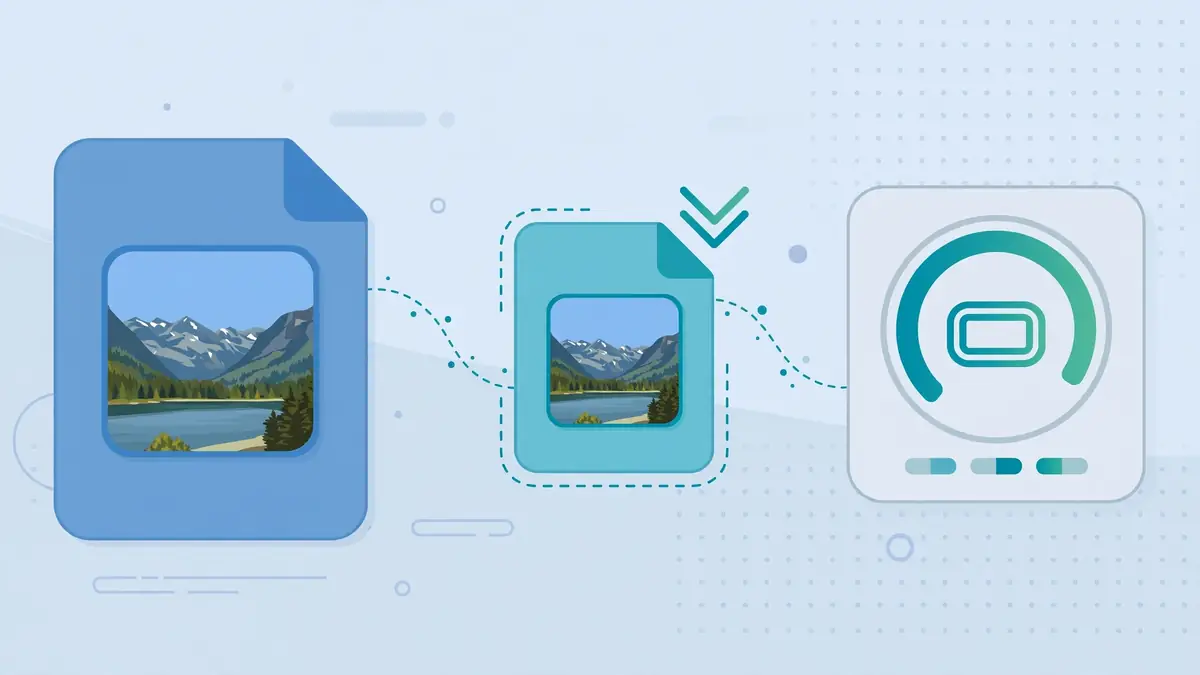
Storage saver compresses photos and videos slightly to use less storage, while original quality keeps full resolution and uses more storage. Both count toward the shared pool for new uploads. Storage saver fits more photos; original quality suits printing and archiving.
The old rule that high quality uploads were free no longer applies to new uploads. Google says photos and videos backed up in Storage saver, previously called high quality, or express quality before June 1, 2021 do not count toward storage, but original quality uploads count regardless of date, and new Storage saver uploads count toward the pool. That date cutoff is easy to misread, so do not assume a current Storage saver upload is free. Check the storage breakdown after changing quality to see the effect on your own account.
Changing quality does not change photos already backed up, unless you use a separate convert option where offered. Google offers a Recover storage option on desktop in some accounts, which converts existing photos and videos to Storage saver, but it is limited in how often it can be used, and it changes the stored files. Before converting a large library, export a copy of the photos you care about most, and test the result on a few photos first. For phone backup in general, our Android backup guide at https://technewsnest.com/android-phone-backup-before-update-reset/ covers device backup alongside photo backup.
Restore deleted photos and videos from trash

Restore deleted photos and videos from trash only while they are still there, because items that are permanently deleted cannot be restored. On a computer, go to photos.google.com, click Trash on the left, select the item, then click Restore at the top right, and the item returns to its albums and to the Google Photos library.
Google’s current retention rule for trash is 30 days on the desktop help page: photos and videos in trash are permanently deleted after 30 days. Older community guidance described 60 days for backed up items and 30 days for items that were not backed up, but the current help page states 30 days, so treat 30 days as the safe limit and restore promptly. You can restore only if you moved the item to trash less than 30 days ago, you have not emptied trash, and you have not permanently deleted it from trash.
On Android, open Google Photos, tap Collections, then Trash, touch and hold the item, then tap Restore. The restored item returns to its albums and to the library. If the item is not in trash, it may be archived, in another folder, in another account, or permanently deleted. Check those places next, but do not pay a third party service that promises to recover permanently deleted Google Photos items, because Google says permanently deleted content cannot be recovered through a Takeout export either.
Find missing photos: archive, folders and accounts
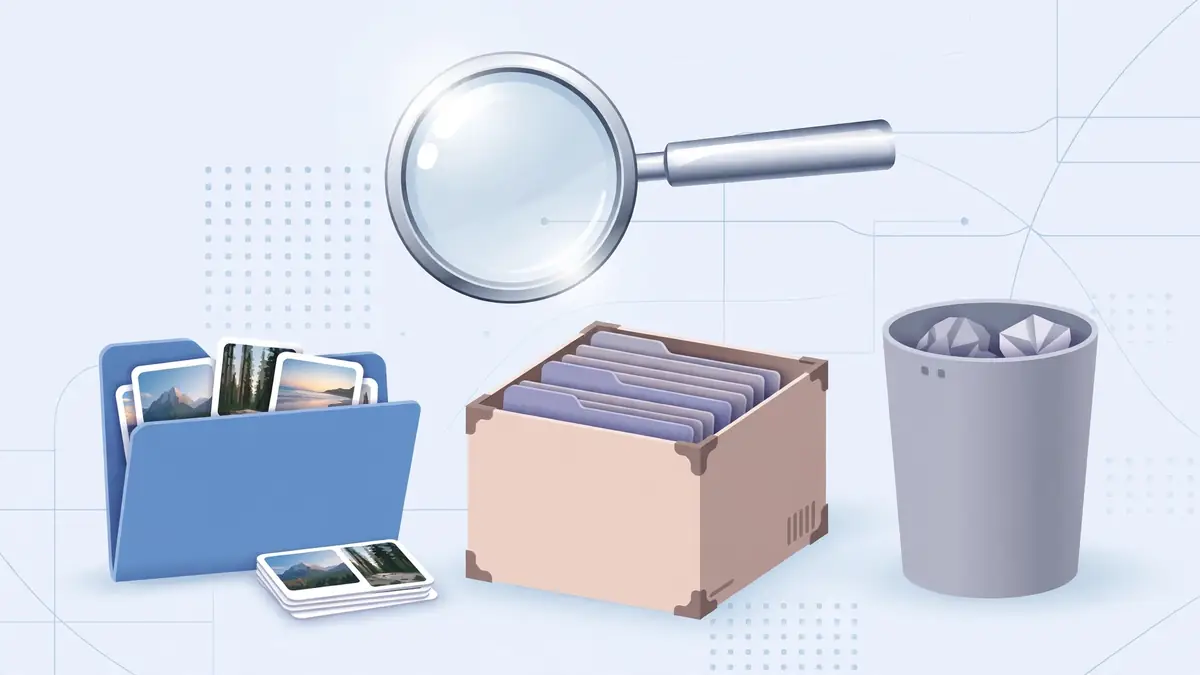
Find a missing photo by checking trash, then archive, then device folders, then other Google Accounts, in that order, because each step rules out a common cause. A photo that is archived is hidden from the main library but not deleted, and unarchiving it brings it back to view.
Start with trash, as above, then check archive. In Google Photos, open the archive view and unarchive any item that should show in the library. Next, check device folders on the phone, because a photo from a messaging app, a screenshot folder, or a downloads folder may never have been selected for backup. Turn on backup for that folder only if you want those items in the cloud, and remember that turning it on uploads past items in that folder too, which uses storage.
When to buy Google One, and when not to

Buy more storage with Google One when cleanup cannot free enough space, when new photos stop backing up, or when Gmail stops sending and receiving mail. Plans can be changed to a larger or smaller plan, and billed monthly or annually.
When storage is full, Google says you cannot create, edit, or upload files in Drive, upload or back up photos in Google Photos, or send and receive mail in Gmail. That full set of blocks is the signal that buying storage is not just a photo problem. If you buy a plan, allow up to 24 hours for the new storage to appear, according to Google, and check that the payment went through on the right Google Account if the total still looks wrong after a day. Buying on the wrong account is a common cause of a plan that seems to do nothing.
Do not buy storage before cleaning up, if the breakdown shows a large amount of deletable video, screenshots, or duplicates. Do not buy storage to fix a missing photo, because a new plan does not restore a permanently deleted item. Do not buy the largest plan by default either: check the breakdown, clean up once, then choose the smallest plan that leaves room for a few months of new photos. Review the plan again after three months, and downgrade if the cleanup and new habits have brought use well below the limit.
Frequently asked questions
How do I turn on Google Photos backup?
Open Google Photos, sign in to the right Google Account, tap your profile picture, tap Photos settings, then Backup, and turn Backup on. Leave the phone on Wi-Fi and power for the first large upload, and check the backup status before freeing up phone space.
How much free storage does a Google Account include?
A personal Google Account includes 15 GB of storage shared across Google Photos, Gmail, and Google Drive. When that pool is full, new photos stop backing up, Drive uploads stop, and Gmail cannot send or receive mail.
Does deleting a photo from Google Photos free up storage?
It depends. Some photos do not count toward storage, such as Storage saver uploads from before June 1, 2021, so deleting them may not change the available total. For photos that do count, Google may show an estimate of recovered storage when you delete them.
How long do deleted photos stay in trash?
Google’s current desktop help page says photos and videos in trash are permanently deleted after 30 days. Restore promptly, and only while the item is still in trash and you have not emptied trash or permanently deleted it.
Can I restore a photo that was permanently deleted?
No. Google says items that are permanently deleted cannot be restored, and a Takeout export cannot recover permanently deleted content. A best effort recovery request may exist for very recent deletions in some cases, but it does not guarantee recovery.
Why are my photos not backing up even though backup is on?
Check storage first, then the account shown in the profile menu, then Wi-Fi and power. If the account is full, new uploads stop. If uploads are going to a different account, the photos will not appear in the account you are checking.
Should I use Storage saver or original quality?
Use Storage saver to fit more photos in the same storage pool, with slight compression. Use original quality if you need full resolution files for printing or archiving, and accept that those files use more storage.
Sources
- Google Photos Help, Back up photos and videos: https://support.google.com/photos/answer/6193313?hl=en-GB&co=GENIE.Platform%3DiOS
- Google Photos Help, Manage your storage: https://support.google.com/photos/answer/9284827?hl=en-IN
- Google Photos Help, Restore recently deleted photos and videos: https://support.google.com/photos/answer/9343482?hl=en&co=GENIE.Platform%3DDesktop