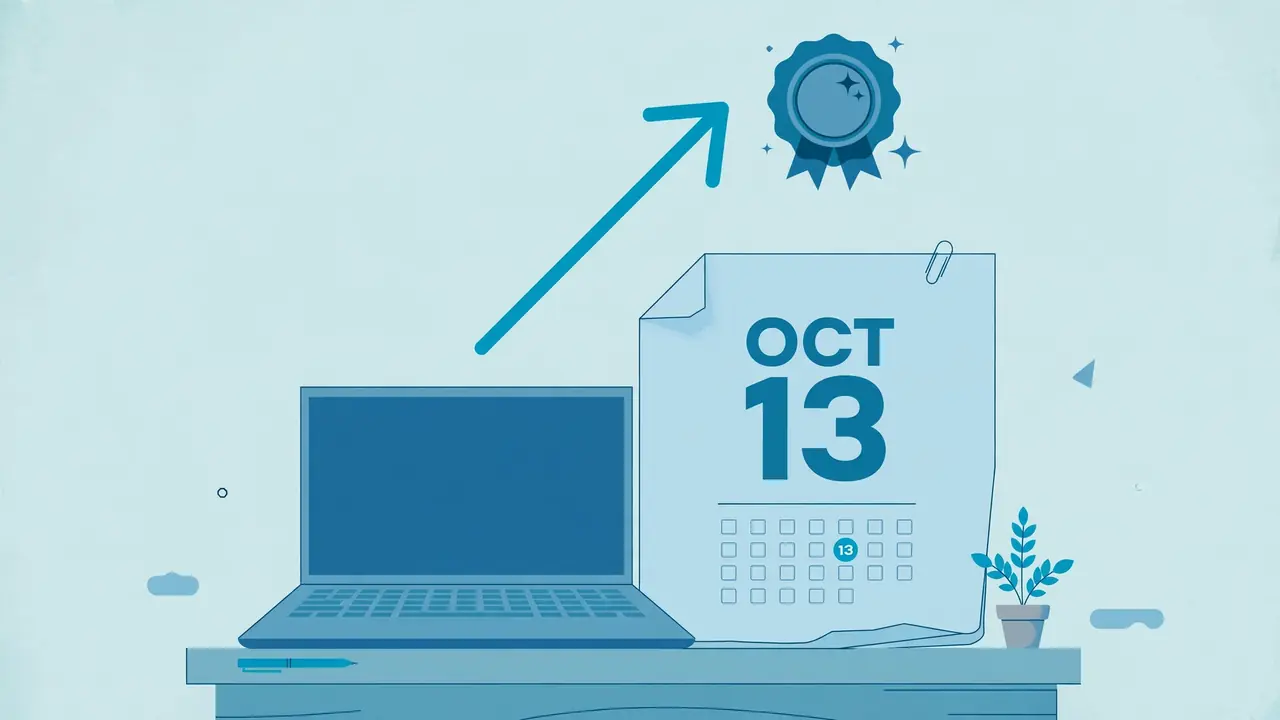
Windows 11 version 24H2 reached a dividing line on October 13, 2026. For Home and Pro PCs, that date ended the monthly update cycle. It did not turn PCs off, delete files, or stop apps from opening. It did change the safety position of those PCs, because a new flaw in 24H2 Home or Pro now has no monthly patch waiting in Windows Update.
What ended on October 13, 2026
On October 13, 2026, Microsoft ended monthly updates for Windows 11 version 24H2 Home and Pro. The October 2026 security update, KB5127648, was the last monthly update for those editions. Your PC still starts and runs, but it no longer receives the regular security fixes that close newly found problems.
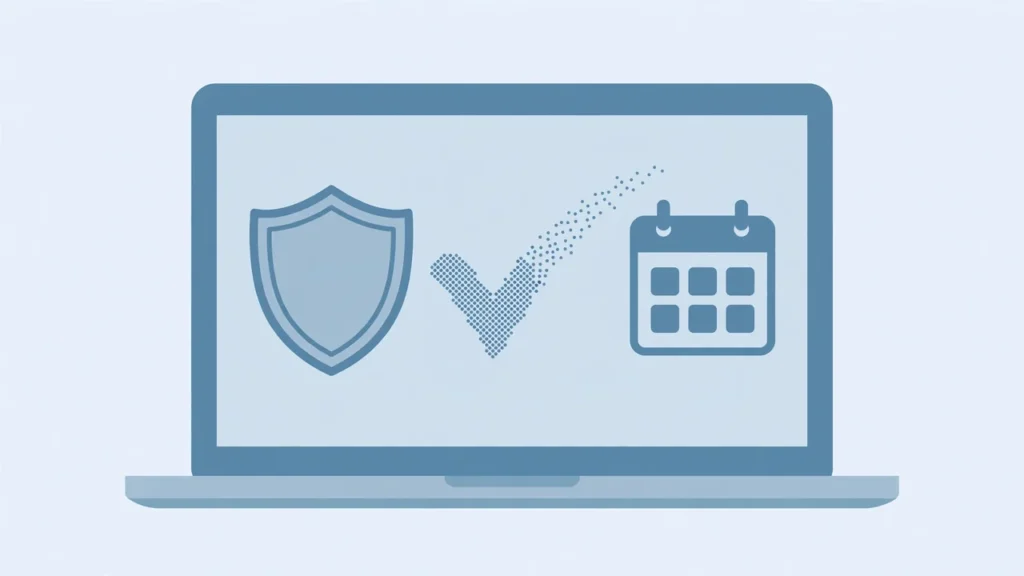
Microsoft Support states the point plainly in the KB5127648 notes. It says Windows 11 version 24H2 Home and Pro has reached end of updates, and that the October 2026 monthly security update is the last update available for these editions. Devices on these editions will no longer receive monthly security and non-security preview updates containing protections from the latest security threats. The date was also listed well in advance on the 24H2 release health page, and the release information table now shows 24H2 Home and Pro as end of updates.
Which editions are affected and which are not
Home, Pro, Pro Education and Pro for Workstations on 24H2 are the editions that reached end of updates on October 13, 2026. Enterprise, Education, IoT Enterprise and Enterprise multi-session on 24H2 keep receiving updates until October 12, 2027, according to Microsoft release information. Check the edition first, because the version number alone does not settle the question.
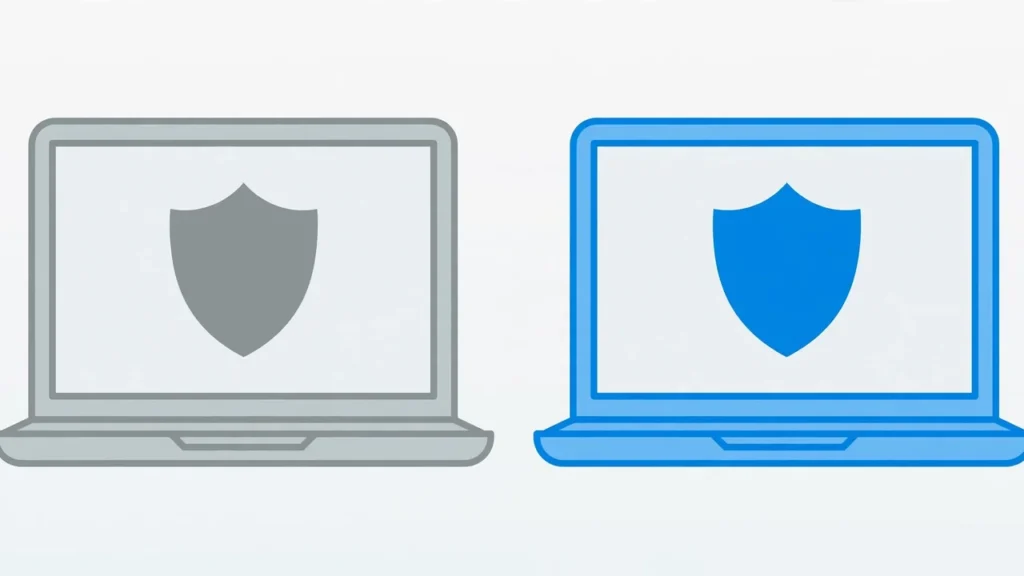
This split follows the servicing lengths Microsoft publishes. Home, Pro, Pro Education and Pro for Workstations receive 24 months of support for a feature version, while Enterprise and Education editions receive 36 months. Version 24H2 became available on October 1, 2024, so the 24 month group reached its end in October 2026, while the 36 month group runs to October 2027. Windows 11 Enterprise LTSC 2024 follows a different channel and is not covered by the Home and Pro date, so use the Home and Pro dates only if the About page says Home or Pro.
What stops after end of updates
After end of updates, Microsoft stops sending monthly security updates, preview updates, known issue fixes, time zone updates and technical support for that version and edition. The October 2026 update remains installed, and apps and files stay in place. The gap is protection, because new flaws disclosed after that date receive no patch on 24H2 Home or Pro.
The practical effect grows over time. In the first weeks after the cutoff, a 24H2 PC may look and feel normal. Each later monthly security release patches flaws that are then public in broad terms, and a PC without those patches stays exposed to them. Antivirus software and careful browsing still help, but they do not replace operating system patches for flaws in Windows itself. Technical support for that version and edition also ends, so a support case is more likely to start with a request to move to a supported version.
How to check your edition and version
Open Settings, then System, then About, and read Edition, Version and OS build under Windows specifications. Version 24H2 uses OS build 26100, while 25H2 uses 26200 and 26H2 uses 26300. If the edition is Home or Pro and the version is 24H2, the PC is in the group that reached end of updates.

The About page gives the full picture in one place. Edition tells you whether the 24 month or 36 month rule applies, version tells you which feature update is installed, and OS build tells you how recent the cumulative update level is. A second check can help when Settings is slow to open. Press Windows key plus R, type winver, and press Enter. The About Windows window shows version and OS build. Write down all three values before you start, because they remove guesswork when you compare the PC with Microsoft tables.
Why 26H2 is the practical upgrade target
Windows 11 version 26H2 became generally available on September 29, 2026, and Microsoft lists October 10, 2028 as its Home and Pro end of updates date. That gives about two years of monthly updates, compared with October 12, 2027 for 25H2. For most home PCs, 26H2 is the move that avoids another version change soon.

Microsoft wording in KB5127648 points in the same direction. After stating that 24H2 Home and Pro has reached end of updates, it says to stay protected and up to date, upgrade to the latest version of Windows 11. In Microsoft release information, 26H2 is the latest generally available version in the current table, with Enterprise and Education updates to October 9, 2029. Version 25H2 remains a supported option, but a PC that moves to 25H2 now would face another version move within about a year. Readers who want a detailed look at 25H2 can read https://technewsnest.com/windows-11-25h2-what-changed/, but the upgrade decision here stands on the dates above.
How to upgrade through Windows Update
Open Settings, then Windows Update, select Check for updates, and choose Download and install when Windows 11 version 26H2 is offered. Restart the PC when prompted, then open Settings, System and About again to confirm the version reads 26H2 and the OS build reads 26300. Do not interrupt the restart, and keep the PC connected to power during the install.
Follow the steps in order, and give each step time to finish.
- Open Settings, then Windows Update.
- Select Check for updates and install any pending cumulative update first.
- When Windows 11 version 26H2 appears, select Download and install.
- Restart when prompted, and leave the PC connected to power.
- After sign-in, open Settings, System, then About, and confirm version 26H2 and OS build 26300.
- Return to Windows Update, select Check for updates again, and install anything still offered.
A managed work PC may look different. If an IT department controls updates, the offer may arrive on its schedule, or the department may use its own deployment channel. In that case, follow the department plan rather than forcing a change, and ask IT to confirm the target version.
What to do if 26H2 is not offered yet
If Windows Update does not offer 26H2, install any pending cumulative update first, restart, and check again later, because Microsoft rolls feature updates out in stages. Check the Microsoft release health page for 26H2 before trying another route, and keep monthly updates installed while you wait.
A missing offer does not always mean a problem with the PC. Feature updates reach eligible devices in phases, and the release health page for 26H2 lists open issues and their status. The October 2026 notes also show why an older baseline can matter. For 24H2 and 25H2, Microsoft said a Windows update released on or after June 10, 2025, such as KB5060842, must be installed before KB5127648. Keep checking Windows Update and keep the PC backed up while you wait.
How to back up before you upgrade
Back up documents, photos and files that exist only on that PC before you upgrade, even though the move should keep files in place. Use an external drive or a cloud backup you can test, and open one file from the backup to confirm it works. That turns a failed upgrade into a delay, not a data loss.
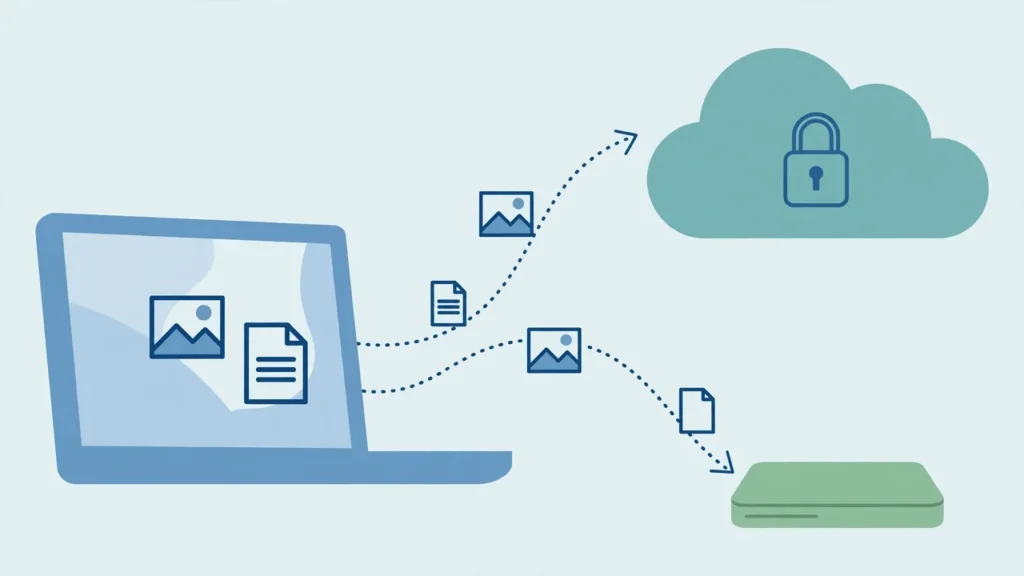
Start with the folders people forget. Documents, Pictures, Desktop, and Downloads often hold files that were never copied elsewhere. Browser bookmarks and app settings also deserve a check, though the exact steps differ by browser and app. Test the backup, because an untested copy is only a hope. Open one document and one photo from the backup location, and confirm they open cleanly. A version upgrade should keep files, apps, and settings, but a backup removes the worst outcome if power fails or the install stops part way through.
What to check after the upgrade
After the upgrade, confirm the version and OS build, install remaining updates, and test sound, Wi-Fi, printing and your most used apps. Microsoft release health for 26H2 lists a mitigated issue with some USB Audio Class 1.0 devices, so test audio first. If a device fails, check Device Manager and the release health page before changing drivers.
The first checks take only a few minutes, and they catch most problems early. Open Settings, System, then About, and confirm version 26H2 and OS build 26300. Then open Windows Update and install anything still offered. The KB5127648 notes show that some issues found in the October update were resolved for 26H2 and 25H2 by updates released on and after October 27, 2026, KB5127936, so the post-upgrade update check matters. If one device fails, note its name in Device Manager and avoid installing drivers from an unknown site.
What happens next in the Windows 11 calendar
Microsoft lists November 10, 2026 as the scheduled end of updates date for Windows 11 version 23H2 Enterprise and Education. Version 24H2 Enterprise and Education runs to October 12, 2027, while 26H2 Home and Pro runs to October 10, 2028. Keep the November date in mind only if you also manage a 23H2 Enterprise or Education PC.

The November 10, 2026 date is scheduled, not already past on November 4, 2026. Microsoft Tech Community, in its Windows news for October 2026, lists November 10, 2026 as the date when Windows 11 version 23H2 Enterprise and Education editions will reach end of updates. The release information table shows the same date for 23H2 Enterprise and Education. This guide does not claim any November 10, 2026 Patch Tuesday content as already released, because that date is still in the future on November 4, 2026. For a home PC that moves to 26H2, monthly security updates continue to October 10, 2028, under current Microsoft release information. Readers who also manage 23H2 Enterprise or Education can read https://technewsnest.com/windows-11-23h2-enterprise-end-of-servicing/ for that separate deadline.
Frequently asked questions
Did Windows 11 24H2 stop working on October 13, 2026?
No. The PC still starts, apps still open, and files stay in place. What stopped for Home and Pro was the monthly update cycle, including security updates, preview updates, known issue fixes, time zone updates, and technical support for that version and edition.
Which Windows 11 24H2 editions lost updates on October 13, 2026?
Home, Pro, Pro Education, and Pro for Workstations on 24H2 reached end of updates on that date. Enterprise, Education, IoT Enterprise, and Enterprise multi-session on 24H2 keep receiving updates until October 12, 2027. Always check Edition on the About page, because the version number alone does not show which rule applies.
Is 25H2 still a valid upgrade from 24H2?
Yes, 25H2 is a supported version, with Home and Pro updates to October 12, 2027. It is a valid choice if Windows Update offers it and you plan another version move within about a year. For most home PCs, 26H2 is the better move now, because its Home and Pro end date is October 10, 2028.
How do I know if my PC is still on 24H2?
Open Settings, System, then About, and read Edition, Version, and OS build. Version 24H2 uses OS build 26100. You can also press Windows key plus R, type winver, and press Enter to see version and OS build in the About Windows window.
What was the last update for 24H2 Home and Pro?
The October 2026 monthly security update, KB5127648, was the last monthly update for 24H2 Home and Pro. On a PC with that update installed, the OS build for 24H2 is 26100.9711. Later monthly updates for 26H2 and 25H2 do not restore monthly updates for 24H2 Home or Pro.
What should I do if Windows Update does not offer 26H2?
Install any pending cumulative update, restart, and check again later, because feature updates roll out in stages. Check the Microsoft release health page for 26H2 for a known issue or hold that affects your hardware, and keep the PC backed up while you wait.
Does moving to 26H2 delete my files?
A version move through Windows Update should keep files, apps, and settings, but you should still back up first. Copy documents, photos, and any file that exists only on that PC to an external drive or a cloud backup, and open one file from the backup to confirm it works.
Sources
- Microsoft Tech Community, Windows news you can use: October 2026: https://techcommunity.microsoft.com/blog/windows-itpro-blog/windows-news-you-can-use-october-2026/4552396
- Microsoft Learn, Windows 11, version 24H2 known issues and notifications: https://learn.microsoft.com/en-us/windows/release-health/status-windows-11-24h2
- Microsoft Learn, Windows 11, version 26H2 known issues and notifications: https://learn.microsoft.com/en-us/windows/release-health/status-windows-11-26h2
- Microsoft Learn, Windows 11 release information: https://learn.microsoft.com/vi-vn/windows/release-health/windows11-release-information
- Microsoft Support, October 13, 2026, KB5127648 (OS Builds 26300.9711, 26200.9711 and 26100.9711): https://support.microsoft.com/en-au/servicing/os/windows-11/2026/10/kb5127648-windows-11-24h2-25h2-26h2-security-update