Google Search Personal Intelligence is the opt-in system that lets AI Mode in Search use context from your Google apps to give answers shaped around your own information. On 23 November 2026, Google said you can now connect Google Wallet to it, with Google Drive and the Gemini app to follow in the coming weeks. This guide covers what each connection adds, how to turn it on, what Google can see, and how to switch it off.
Until now, Personal Intelligence in AI Mode could draw on Gmail, Calendar, and Photos. The three new connections widen that circle to spending, documents, and chats, but only Wallet is rolling out now.
What Personal Intelligence changes about a Google search
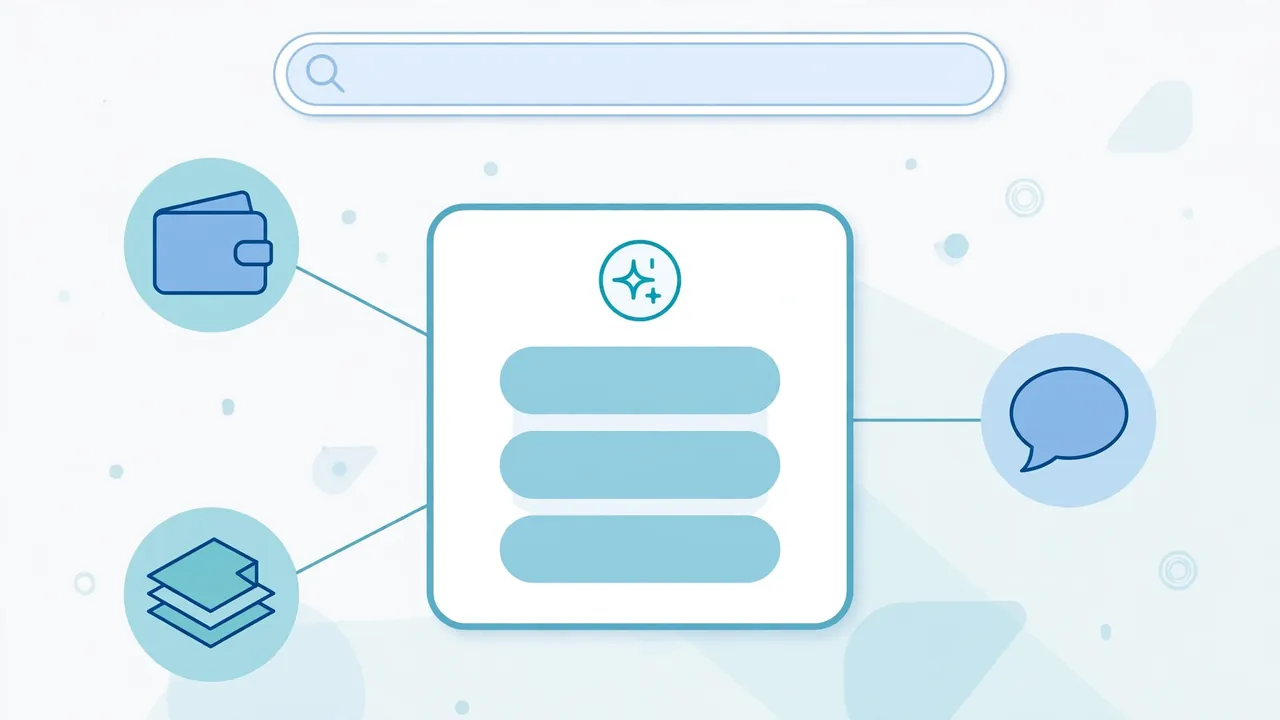
Personal Intelligence lets AI Mode use context from apps you connect, so answers can reflect your own files, spending, and past chats instead of only public web pages. It is opt-in, it works inside AI Mode and other Search services, and you pick which apps to connect. Nothing changes if you leave it off.
The same announcement says AI Overviews and AI Mode will start giving more personally relevant responses based on your recent search context. You can turn that personalization off in Search Settings. Google is also clear that Google Search Personal Intelligence can get things wrong, and its support page says you can correct it with a follow-up.
Wallet first: what spending context adds to AI Mode
Connecting Wallet lets AI Mode read spending and card information to help you plan around money you already spend. Google gives examples such as mapping financial milestones, finding ways to trim everyday spending, and picking the card with the best cash back, travel perks, or reward points for a purchase. The access is read-only.
The Google Search Personal Intelligence connection covers both AI Mode and the Gemini app. Wallet first reached the Gemini app on 13 November 2026, for all Gemini app users in the United States.
Google’s Gemini help pages define what Wallet hands over: payment methods, receipts, data from Google services saved in Wallet, and financial account information linked through services such as Plaid. In practice, AI Mode can look at what you spent and which cards you hold, then suggest a card for each purchase.
The limit is the part Google states most firmly. If you connect your Wallet, AI Mode can only read information from your accounts. It cannot move, manage, or invest your money, and Google describes no payment or transfer ability. It can advise on spending, but it cannot touch it.
For more on how Google’s apps work together, see Chrome enhanced autofill, Gmail, and Gemini.
Drive next: what your documents add, and what they do not
Drive is not live yet. Google says support follows in the coming weeks, and when it arrives AI Mode will be able to draw on Docs, Sheets, and PDFs you keep in Drive. The example Google gives is a preparation plan ahead of tax season built from your own files. The context is used to shape answers for you.
The information you need to start a project is often scattered across documents, spreadsheets, and PDFs. With Drive connected, Google says AI Mode can take all of that context into account.
What Drive will not do is just as important to state plainly. Google has not said AI Mode will edit your files, share them, or act on them. The announcement describes reading context to shape answers, not a file manager. If your Drive holds tax returns, contracts, or medical records, read the privacy section before you connect it.

The Gemini app link: how chats and Search share context
In the coming weeks you will be able to connect the Gemini app to Personal Intelligence in AI Mode, so an idea you explore in one place carries over to the other. You could already connect Search history to Personal Intelligence in the Gemini app, and this update adds the reverse direction, from Gemini chats into Search.
Reporting by 9to5Google adds detail on what the connection covers. It says AI Mode will be able to use your Gemini chats, what you have shared with Gemini Apps, such as photos, files, audio or video attachments, and screens you ask about, plus associated insights and locations. That is a wider sweep than Wallet or Drive, because a Gemini chat can hold half-formed plans, pasted text, and images.
9to5Google also notes a timing wrinkle: the option to connect is available now, but the feature itself goes live in the coming weeks. Do not be surprised if you switch it on and see nothing change at first. The useful test, once it is live, is to start a plan in the Gemini app, then ask AI Mode a follow-up and see whether it picks up the thread.
For a broader look at the two assistants, see Gemini vs ChatGPT comparison.

Wallet vs Drive vs Gemini app: what each connection adds
Wallet is rolling out now and adds spending and card context. Drive arrives in the coming weeks and adds documents, spreadsheets, and PDFs. The Gemini app also arrives in the coming weeks and adds chat history and shared files. All three are opt-in, and each can be switched on or off on its own.
| Connection | Status on 24 Nov 2026 | What AI Mode can use | Limits to know |
|---|---|---|---|
| Google Wallet | Rolling out from 23 Nov 2026 | Payment methods, receipts, and linked financial account information | Read-only; cannot move, manage, or invest money |
| Google Drive | Coming in the coming weeks | Docs, Sheets, and PDFs in your Drive | No date given; Google has not described editing or sharing files |
| Gemini app | Coming in the coming weeks | Gemini chats, shared photos, files, audio, video, screens asked about, insights, and locations | Option to connect is available now, but the feature goes live later |
Read the table as a set of trade-offs, not a ranking. Wallet gives the most concrete answers the fastest, because spending data is structured and the use is narrow. Drive gives the most personal answers, because your documents hold the details of your projects, and that is also why it carries the most privacy weight. The Gemini app gives the most continuous answers, because it links two places where you already think through ideas.

How to connect an app to Personal Intelligence in AI Mode
Open Search Personalization, select Connected Apps, and choose the apps you want to connect. Google lists those three moves as the whole path. Wallet should appear first because it is rolling out now, while Drive and the Gemini app appear when they reach your account. You need a personal Google account, and you must be 18 or older.
Follow these steps in order.
- Sign in with your personal Google account. Google’s help pages say the feature needs a personal account and does not work with a work, school, or supervised account.
- Open Search Personalization in your Google Account and turn on Personalized Recommendations there first.
- Go to Additional Personal Intelligence, then Connected Content Apps. Google notes it is updating these settings, so labels may differ.
- Select Connect next to the app you want. Wallet is the one to look for first. Drive and the Gemini app will appear as they roll out to your account.
- Confirm the prompt, then test it by asking which of your cards gives the best cash back on groceries.
Before you connect anything, confirm you are on your personal account, not a work account. Decide which apps you want, and connect one at a time so you can judge each one. Check what is actually in the app first: which cards sit in Wallet, and which files sit in Drive. Connecting is not permanent, and you can switch any app off again. If the option is missing, the rollout has not reached your account yet.

How to check what AI Mode used in an answer
Soon you will be able to tap a Personalization icon below any tailored response to see the context AI Mode used. Google says that icon is coming, not live yet. Until then, ask AI Mode a question tied to one connected app and see whether the answer reflects that context. If it is wrong, correct it in the same thread.
Google also gives a concrete way to correct the record: if something in your context is out of date, tell AI Mode in the same thread. Google’s example is replying “I’m no longer a vegetarian.”

How to disconnect an app and turn personalization off
You can turn any connection on or off at any time in Search Personalization under Connected Apps, and you can adjust or turn off personalization in Search Settings. Disconnecting stops future use of that app. It does not delete data already in your Search Services History, which you manage and delete separately in My Activity.
To disconnect one app, go back to the same screen you used to connect it. Open Search Personalization, go to Additional Personal Intelligence, then Connected Content Apps, and select Disconnect next to the app. The change applies to that app only. To go further, turn off Personalized Recommendations on the same page.
Two cleanup facts are easy to miss. First, disconnecting an app does not delete anything from your Search Services History. Google’s support page says that history can still be used for product improvement, including training. You manage and delete it at My Activity. Second, Personal Intelligence also lives in the Gemini app, with its own Connected Apps settings. If you connected apps there, check both places: switching one off does not switch off the other.

What Google can and cannot see, and what happens to your data
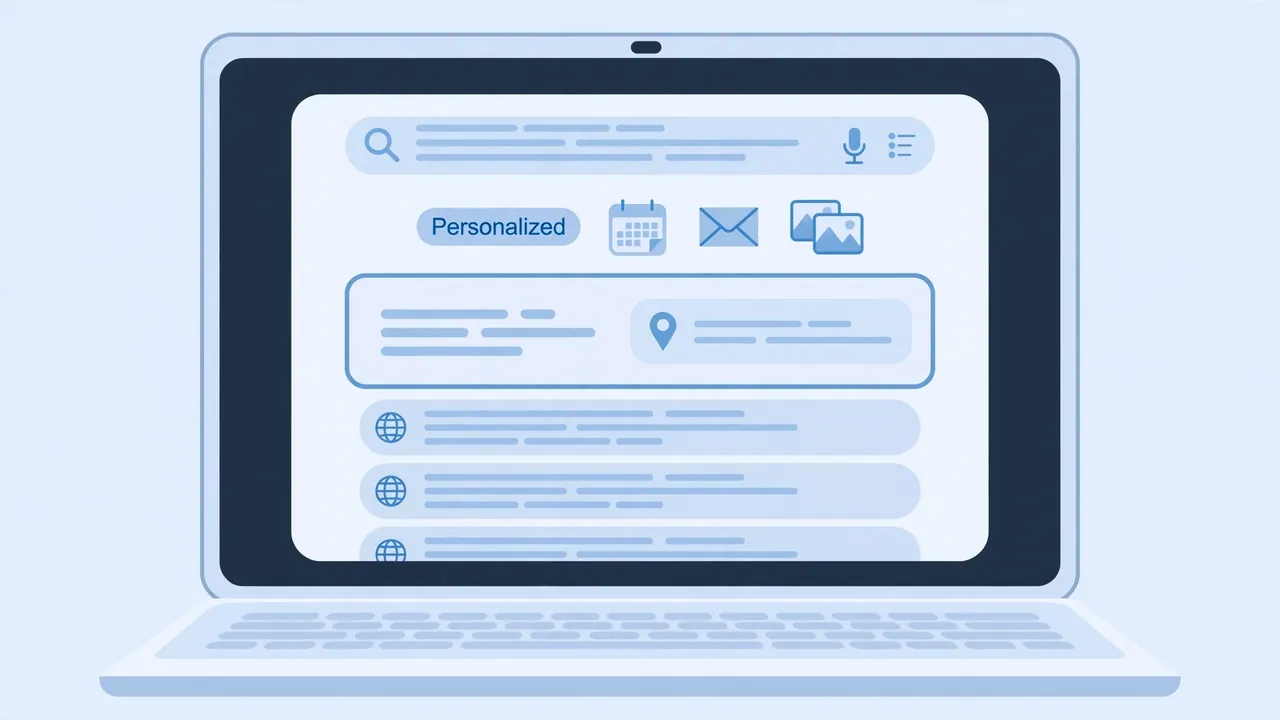
Google Search Personal Intelligence works from summaries, excerpts, and inferences drawn from your connected apps, not from your whole inbox or photo library. Google says that material may train generative AI models and that a subset is reviewed by human reviewers. Ads are not based directly on your Gmail inbox or Photos library, and advertisers get no access to them.
Start with training, because it is the part most people miss. Google’s Search help page says that when you connect content apps, the data may be used to improve Google services for everyone, including by training generative AI models. Search does not train models directly on your Gmail inbox, Drive, or Calendar, or on imagery or audio from your Photos library. Instead it trains on summaries, excerpts, generated media, and inferences from the material that matters to your question.
Human review is the second fact to weigh. A subset of the data processed by AI Mode and Ask Maps is reviewed by human reviewers, including trained service providers. That subset can include summaries and excerpts from your emails and files. For Photos, humans do not view your actual media except in abuse cases or when you submit feedback. Google says reviewers are disconnected from your account and personal details are reduced first. Its own advice is blunt: do not connect apps holding personal or confidential information you would not want a reviewer to see.
Ads are the third fact, and the picture is mixed. Google says ads will not be based directly on your Gmail inbox or your Google Photos library, and advertisers will not have access to your inbox or photos. At the same time, the summaries and excerpts used to answer you may also be used to show you ads. One more scope note matters: connecting a content app means all Search services can use it, not only AI Mode, including Maps, Shopping, Flights, Hotels, Translate, and News.

Who gains from connecting, and who should wait
You gain the most if your Wallet, Drive, or Gemini chats already hold the context behind your questions, such as spending, trip plans, or project files. Wait if your Drive holds sensitive work files, if you share the account, or if you are uneasy about training and human review. You lose nothing by waiting: AI Mode works without any connection.
The clearest winners are people whose questions repeat the same context: budgets and card rewards for Wallet, project files for Drive, and long trip plans for the Gemini link.
Waiting is the right call in a few cases. If your Drive holds client files, medical records, or anything you would not want summarized for training or seen by a reviewer, leave Drive off. If you share a device or account with family, remember the answers will reflect the account’s data, not only yours. A middle path works for most people: connect Wallet first, since it is live now and its scope is the narrowest.

Frequently asked questions
Is Personal Intelligence turned on by default?
No. You choose if and when to opt in, and Google says you can turn connections on or off at any time. If you never connect an app, nothing about Search changes for you.
Can AI Mode move money or pay from my Wallet?
No. The access is read-only. Google says AI Mode can only read information from your accounts, and it cannot move, manage, or invest your money. It can suggest which card to use or where spending can be trimmed, but it cannot pay a bill or transfer funds.
When will Drive and the Gemini app connections arrive?
Google says both follow in the coming weeks, and it has given no exact date as of 24 November 2026. Wallet is the only one of the three rolling out now. The Gemini app option is visible for some users already, but the feature itself goes live later, 9to5Google reports.
Can I use it with a work or school Google account?
No. Google’s help pages say Personal Intelligence needs a personal Google account and a user aged 18 or older. It is not available on work, school, or supervised accounts.
Will Google use my Gmail or Drive files to show me ads?
Not directly. Google says ads will not be based directly on your Gmail inbox or your Google Photos library, and advertisers get no access to your inbox or photos. The summaries and excerpts drawn from your connected apps to answer you may still be used to show you ads.
What happens to my data if I disconnect an app?
Disconnecting stops that app from feeding new context into Search, but it does not delete data already in your Search Services History. You manage and delete that history separately in My Activity.
Why do I not see the option to connect Wallet yet?
The rollout is gradual. Google says Personal Intelligence is being released step by step and may not be available to you just yet, and Wallet only started rolling out on 23 November 2026. Check Search Personalization again later, and confirm you are signed in with a personal account.
Sources
- Google (The Keyword), “Tailored Google Search with Personal Intelligence apps,” 23 November 2026: https://blog.google/products-and-platforms/products/search/google-search-personal-intelligence-apps/
- Google Search Help, “Connect your Google content apps to get a Search services experience that’s tailored to you”: https://support.google.com/websearch/answer/16859283?hl=en-GB&co=GENIE.Platform%3DDesktop
- Google Gemini Help, “Connect your Google apps to personalize your Gemini experience”: https://support.google.com/gemini/answer/16598406?hl=en&co=GENIE.Platform%3DAndroid
- Google Gemini Help, “About personalization with Connected Apps”: https://support.google.com/gemini/answer/16836988?hl=en
- TechCrunch, “Google Search’s AI Mode can now tap into Drive and Wallet for more personalized responses,” 23 November 2026: https://techcrunch.com/2026/11/23/google-searchs-ai-mode-can-now-tap-into-drive-and-wallet-for-more-personalized-responses/
- 9to5Google, “AI Mode adding Google Drive, Wallet, & Gemini app integration,” 23 November 2026: https://9to5google.com/2026/11/23/ai-mode-wallet-gemini/