Introduction
A form that asks for an order number or a flight booking code can stop a simple task in its tracks. The number is usually in an email, so the user leaves the form, searches the inbox, copies the number, and returns to finish. Google added a feature to Chrome that tries to shorten that path. Enhanced autofill can suggest details from Gmail while a form is open, using Gemini with Personal Intelligence.
This article explains what the feature does, what kinds of details it can suggest, who can use it in the United States, and how to check, remove, or turn off a suggestion. It is based on Google Chrome Help, Google Gemini Help, and reporting of Google’s announcement on October 28, 2026.
What is Chrome enhanced autofill?
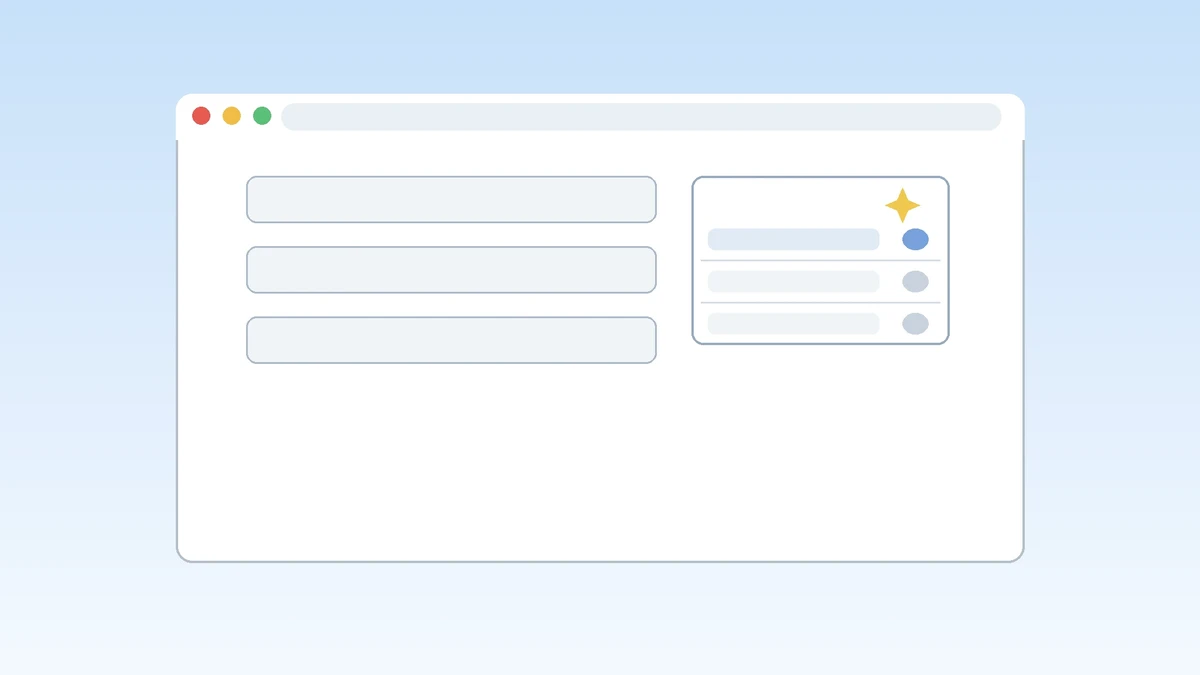
Chrome enhanced autofill is a form filling feature that can suggest information taken from Gmail while a user fills out an online form. It builds on standard Chrome autofill, which fills saved names, addresses, and payment details, by adding a separate layer that looks for relevant details in email.
Standard autofill works from information a user has already saved in Chrome or in a Google account. Enhanced autofill works in a different way. When a form asks for a detail that matches information in a Gmail message, Chrome can offer that detail as a suggestion, even if the user never saved that detail in Chrome. The suggestion appears in the usual autofill dropdown, so the user still chooses whether to accept it.
Google describes the feature as powered by Gemini with Personal Intelligence, the opt in setting that lets Gemini use data from connected Google apps. In Chrome, that connection lets Gemini look for a matching detail in Gmail. The feature does not replace standard autofill, and it has its own setting in Chrome.
What details can it pull from Gmail?
Enhanced autofill can suggest order numbers, tracking information, and flight bookings from Gmail, according to Google’s announcement as reported on October 28, 2026. Google Chrome Help adds flights, vehicles, and orders to that list, so the practical range covers travel and order details that commonly arrive by email.
An online store sends a confirmation email after a purchase, and that email usually contains an order number. If a later form asks for that number, for example on a returns page, Chrome can suggest the number from the confirmation email. A shipping email contains a tracking number, and a carrier page can receive it as a suggestion. An airline confirmation email contains a booking code, and an online check in form can receive it as a suggestion.
Google has not presented this feature as a general search of the whole inbox for any personal detail. The named categories point to structured details in confirmation and shipping messages. Credit card numbers and addresses are part of standard autofill, which fills them from details saved in the browser or in Google Wallet, and the announcement does not say the new feature pulls those details out of an inbox.
How does Gemini Personal Intelligence work in Chrome?

Gemini Personal Intelligence is an opt in setting that lets Gemini use data from connected Google apps, including Gmail through Google Workspace, to give answers that fit the user. In Chrome, Personal Intelligence is the permission that allows Gemini to look for a matching detail in Gmail when a form is open.
Google Gemini Help says a user can control which apps are connected at any time from Connected Apps settings. Google Workspace is the connected app group that includes Gmail, Calendar, and Drive. For Gemini to connect to Google Workspace, a setting called Smart features in other Google products must be on.
Google Gemini Help says a user must be 18 or older, must sign in with a personal Google Account, and must have Keep Activity on. Work, school, and supervised accounts are excluded. Personal Intelligence is released gradually, so it may not be available yet even if the account meets those requirements. In Chrome, the user must also be a Gemini in Chrome user, and enhanced autofill must be on.
Who gets enhanced autofill in the US?

Enhanced autofill is available on desktop, Android, and iOS for Gemini in Chrome users in the United States who are 18 or older and have opted into Gemini Personal Intelligence, according to Google Chrome Help. Google’s announcement describes the rollout as beginning in the United States, so availability is limited by country, by platform, and by account type at launch.
The country limit is the first filter. A user outside the United States will not get this version of enhanced autofill, even if the user has Chrome and a Gmail account. Google has not announced a date for other countries in the announcement as reported. The platform limit is the second filter. The feature covers Chrome on a desktop computer, Chrome on Android, and Chrome on iOS.
The account limit is the third filter. A user must be 18 or older, must use a personal Google Account, and must have opted into Personal Intelligence, with Keep Activity on. A work, school, or supervised account does not qualify. A user who meets every requirement may still not see the feature at once, because Google says the rollout is released gradually.
How do you use a Gmail suggestion in a form?
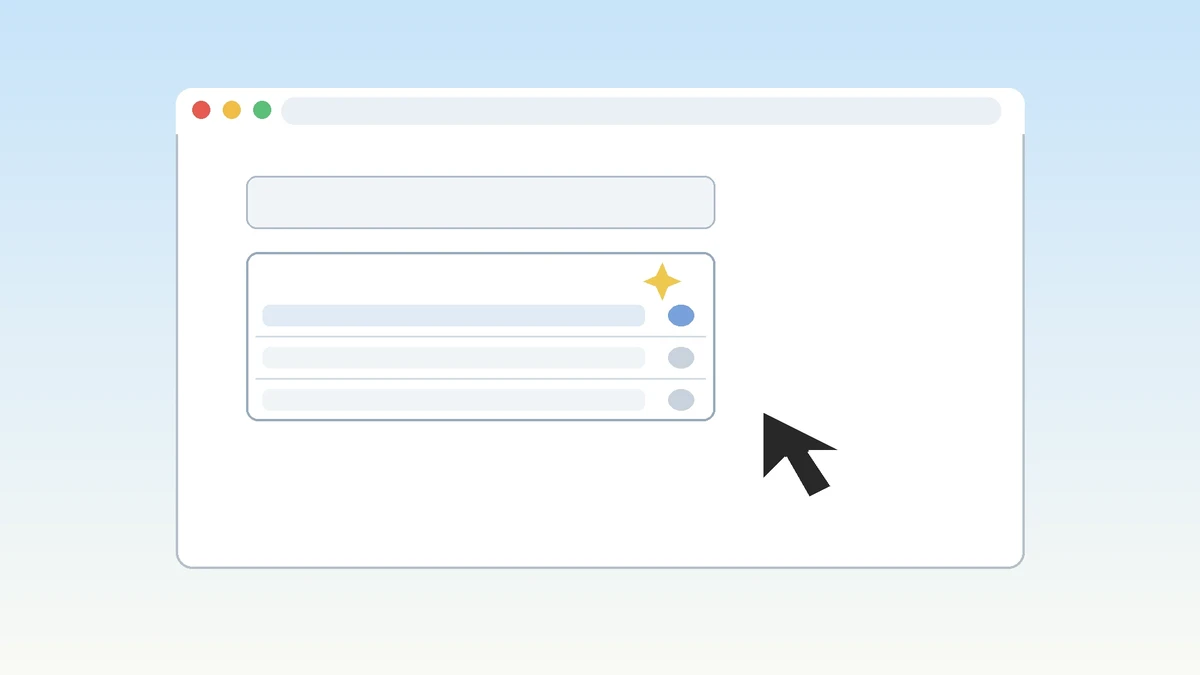
To use a Gmail suggestion, open a form in Chrome, tap or click the field that asks for the detail, and look for a suggestion marked with the Gemini spark icon in the autofill dropdown. Select that suggestion to place the detail in the field, then check the value before submitting the form.
The check at the end is important. A suggestion is a match that Gemini found in Gmail, and a match can be wrong. An inbox can hold more than one order, booking, or tracking number, and the form may ask for a specific one. The user should read the suggested value and compare it with the task before submitting.
Google Chrome Help says suggestions appear in a dropdown and are marked with the Gemini spark icon. Reporting of the announcement describes the same idea with a label that reads Suggested by Gemini. A suggestion without that label comes from saved information in Chrome, while a suggestion with that label comes from Gmail through Gemini.
How do you check where a suggestion came from?
To check where a suggestion came from, open the suggestion dropdown in the form field, hover over the Gemini suggestion to view its menu, and select the link to the original source. Chrome opens the email in Gmail in a new tab, so the user can read the message and confirm the detail.
This source check is the most useful control in the feature, because it turns a suggestion into a verifiable value. A booking code in a form field is hard to judge on its own. The same code inside an airline confirmation email is easier to judge, because the email also shows the airline name, the flight date, the passenger name, and the route.
The source link also helps when an inbox holds several similar messages, since a suggestion may come from the older message. Opening the source email shows which message Chrome used. A user who cannot find a source link should not submit a form with a value that cannot be checked.
How do you remove one suggestion or turn the feature off?

To remove one suggestion, open the suggestion dropdown in the form field, hover over the Gemini suggestion to view its menu, and select Remove from Chrome. To turn the whole feature off on a computer, open Chrome settings, select Autofill and passwords, select Enhanced autofill, and turn Find and fill with Gemini off.
The two actions do different things. Removing one suggestion stops that value from appearing again in Chrome, but it does not turn off enhanced autofill, and it does not delete the email. A user who does not want Gmail suggestions at all should turn off Find and fill with Gemini. Standard autofill keeps working after enhanced autofill is turned off, because the two features have separate controls.
On a phone, the controls sit in a similar place in Chrome settings, under Autofill and passwords and then Enhanced autofill. A user who wants Gemini to stop reading Gmail for every purpose, not just for forms, needs a separate step: disconnect Gmail in Gemini Connected Apps settings.
What happens when you delete the original email?
When a user deletes the original email from Gmail, Chrome removes the suggestion that came from that email, according to Google Chrome Help. Removing a suggestion from Chrome does not delete the email, but deleting the email does remove the suggestion, and that direction matters for cleanup.
Removing a suggestion from Chrome is a local action in Chrome. It hides that value from future forms, but the email stays in Gmail. Deleting the email is a Gmail action. It removes the message, and Chrome then removes the suggestion that came from that message, because the source no longer exists.
This rule explains why an outdated suggestion can linger after a trip or an order is finished. If the confirmation email stays in Gmail, Chrome may still offer its details. Google Gemini Help adds that if data in a connected app is deleted or updated, the effect on Gemini may not appear until days later.
What are the privacy limits to know?

Google says sensitive data is encrypted and that the user remains in control, and Google Chrome Help gives the user controls to manage, remove, or turn off enhanced autofill. The limits to know are about what Google has not explained in the announcement, what the help pages do not cover, and what the user must check for themselves.
The first limit is scope. Enhanced autofill is limited to Gmail at launch, and it is limited to eligible users in the United States. It does not give Chrome access to every Google app for form filling. The second limit is editing. Google Chrome Help says information pulled from Gmail cannot be edited in Chrome. A user who spots a mistake must type the correct value by hand.
The third limit is the gap between the announcement and the full data handling picture. The announcement, as reported, says sensitive data is encrypted and the user remains in control, but it does not explain in detail what Gmail content is scanned, how long a suggestion is kept, or whether Gmail content used for a suggestion is used to train models. A user who wants the full picture should read the Chrome settings screen and the Gemini privacy pages before turning the feature on.
A separate protection applies to sensitive information in Chrome in general. Google Chrome Help says re-authentication is on by default, sensitive personally identifiable information is partially hidden, and the user must use a screen lock, fingerprint, face unlock, or device PIN before Chrome has access to populate that information in forms. If a device does not support biometrics, Chrome uses the default device screen lock instead. That protection is about the device in hand, so a user on a shared computer should still sign out and should not leave Chrome signed in with a personal account.
What has not changed, and what should you check first?
Standard Chrome autofill has not changed for users who do not opt into Personal Intelligence, and a user who never turns on Personal Intelligence will see no Gmail suggestions. A user who turns off enhanced autofill will still have standard autofill, and a form will still work by hand if no suggestion appears.
The checks that matter most are short. First, check the account. The user must be signed into Chrome with a personal Google Account, must be 18 or older, and must have Personal Intelligence on with Gmail connected. Second, check the setting. On a computer, open Chrome settings, select Autofill and passwords, select Enhanced autofill, and confirm whether Find and fill with Gemini is on or off. Third, check the source before submitting.
For a user who does not want Gmail suggestions, turn off Find and fill with Gemini in Chrome settings, and to stop Gemini from reading Gmail at all, disconnect Gmail in Gemini Connected Apps settings. For a user who wants the feature, start with a low risk form, such as a tracking lookup, and check the source email each time.
Is Chrome enhanced autofill on by default?
No. The feature requires Gemini in Chrome with Personal Intelligence turned on, and Google Chrome Help limits it to users in the United States who are 18 or older and have opted into Personal Intelligence.
Does enhanced autofill pull credit card numbers from Gmail?
No, according to Google’s announcement as reported. The announcement names order numbers, tracking information, and flight bookings from Gmail, and it does not list credit card numbers or addresses as details pulled from Gmail.
Can I use enhanced autofill on my phone?
Yes, if the account meets the requirements. Google Chrome Help says enhanced autofill is available on desktop, Android, and iOS for Gemini in Chrome users in the United States who are 18 or older and have opted into Gemini Personal Intelligence.
Why do I not see Gmail suggestions even though I use Chrome?
The most likely reasons are that Personal Intelligence is off, Gmail is not connected in Gemini Connected Apps, the account is a work or school account, Keep Activity is off, or the rollout has not reached the account yet.
What happens if a suggestion is wrong?
Do not accept it. Check the source email through the suggestion menu, and if the email does not match the task, remove the suggestion from Chrome or type the correct value by hand. Information pulled from Gmail cannot be edited in Chrome.
Does removing a suggestion delete the email?
No. Removing a suggestion from Chrome does not delete the original email in Gmail. Deleting the original email does remove the suggestion, according to Google Chrome Help.
Will enhanced autofill work outside the United States?
Not under this announcement. Google describes the rollout as beginning in the United States, and Google Chrome Help limits the feature to Gemini in Chrome users in the United States.
References
- Google Chrome Help, Fill out forms automatically in Chrome: https://support.google.com/chrome/answer/142893?hl=en&ref_topic=7439541
- Google Gemini Help, Connect your Google apps to personalize your Gemini experience: https://support.google.com/gemini/answer/16598406?hl=en&co=GENIE.Platform%3DAndroid
- 9to5Google, Google Chrome rolling out Suggested by Gemini autofill, October 28, 2026: https://9to5google.com/2026/10/28/chrome-autofill-gemini/