
How to use Gemini computer use on your Mac
Google announced on November 19, 2026 that computer use is rolling out in the Gemini app for Mac. Gemini computer use Mac lets the assistant click buttons, type into fields, open menus and fill in forms across local files, desktop apps and websites, inside an isolated background window with a live preview in your chat. This guide covers setup, safety controls, four jobs worth trying first, and who should try it now.
Check whether your Mac and account qualify
Gemini computer use Mac needs an Apple Silicon Mac running macOS Sequoia 15.0 or later, a personal Google account held by someone 18 or older, a Google AI Plus, Pro or Ultra plan, and English in the United States. Intel Macs, work and school accounts, free accounts and other regions sit outside this first rollout.

Click the Apple menu, then About This Mac, and check two things: the chip line should name an Apple silicon chip such as M1, M2, M3 or M4, and the macOS line should read Sequoia 15.0 or later. An Intel Mac cannot run this feature. The feature also needs a personal Google account, so a work or school account managed by an administrator does not qualify, and a paid Google AI plan: Plus, Pro or Ultra, according to Google’s announcement. One warning before you pay: AppleInsider reports that Google’s support documentation currently names only Pro and Ultra for controlling desktop apps, while the announcement lists Plus as well. If you are on Plus, confirm that computer use actually appears in your app. Google has given no date for expansion to other countries, languages, or Windows, TechCrunch reports.
Download the Gemini app for Mac and update it
Get the Gemini app for Mac at gemini.google/mac, sign in with your personal Google account, and update the app before you look for computer use. The feature is rolling out gradually, so an older version of the app may not show it at all.

Open gemini.google/mac in your browser and download the Mac installer. Open the downloaded file, drag the Gemini icon into Applications, then open the app and sign in with the personal Google account that holds your Google AI plan. Our Gemini app for Mac guide walks through the same install in more detail. Then update the app before you try anything else. Click Gemini in the menu bar, then Check for Updates, and install any update offered. Google is switching computer use on account by account, so an older version may not show it. If it is missing, check again after a day or two rather than reinstalling, which will not speed up a server side rollout.
Switch computer use on and grant the macOS permissions
Before Gemini can click or type in other apps, macOS must grant it Accessibility and Screen and System Audio Recording permissions, and Gemini must ask which apps it may use. Both gates matter, and both stay under your control at all times.
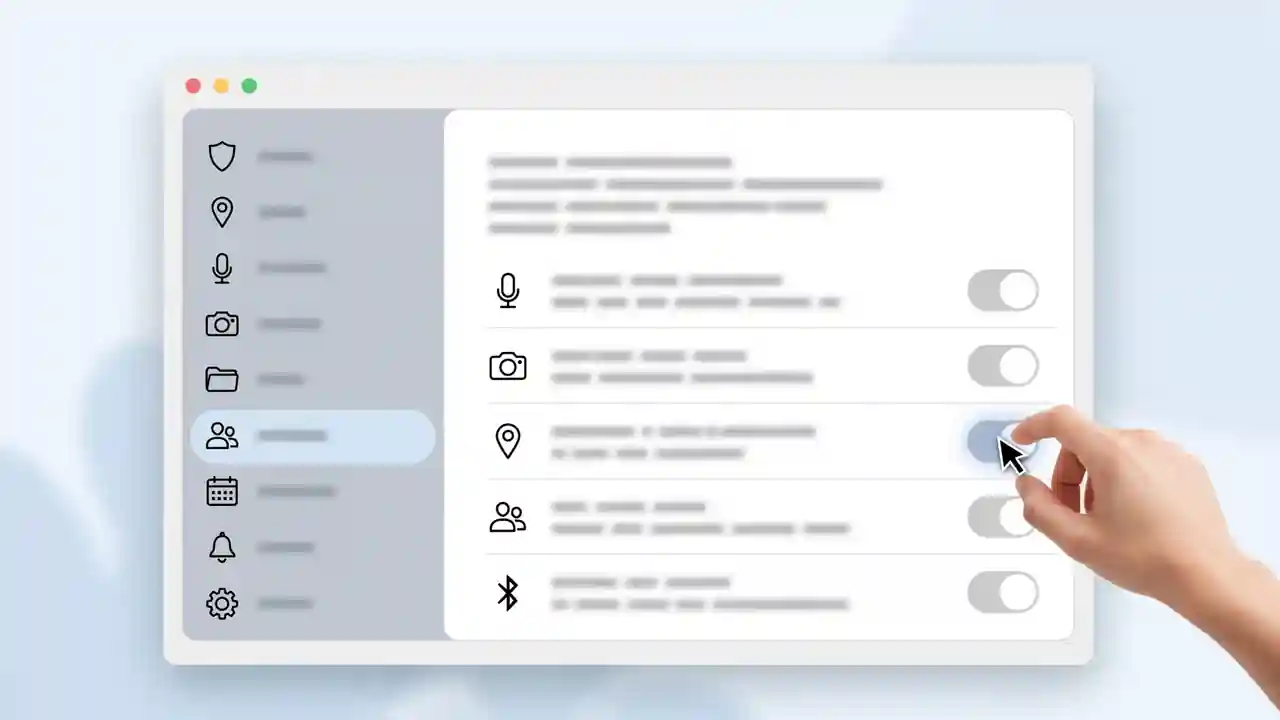
The two macOS permissions are the same ones Apple requires for any app that views or controls the screen. Accessibility lets an app press buttons and type on your behalf, while Screen and System Audio Recording lets it see what is on the display so it can find a button before it clicks. AppleInsider reports that enabling computer use prompts for these two permissions, which you grant in System Settings under Privacy and Security. Grant them only when you are ready to try the feature, and only for the Gemini app. If a permission prompt appears when you did not ask Gemini to do anything, stop and check what triggered it. Inside Gemini, a second layer applies: the first time Gemini needs an app, it asks first. Approve one app at a time.
Start a task by adding @Computer use to your prompt
To start a task, type your request in the Gemini app for Mac, add @Computer use to your prompt, and describe the outcome you want in plain language. Gemini then handles the clicking, typing, menus and forms for you, step by step.

The @Computer use tag is what turns an ordinary chat message into a computer use job. Without it, Gemini answers in chat as usual. With it, Gemini opens the apps it needs and starts working through the steps. Google’s own demo shows the shape of a good prompt: “Could you take my kid’s butterfly sketch, model it and rig it for me in Blender? @Computer use” That prompt names the source file, names the app, and names the result. Copy that shape. A vague prompt such as “sort out my photos” leaves Gemini guessing, and guessing is where an agent makes mistakes. Send one job per prompt rather than five jobs in one message. Be specific about files too: name the folder, such as “the shipping forms in the Downloads folder”, and say what should happen to the result.
Watch the job run in the background window
Gemini does the work inside an isolated background window with a live preview right in your chat, and your main screen and cursor remain completely free. You can keep typing, designing or taking calls while the job runs in the background.

Other agents take over your screen and cursor. Gemini computer use Mac does not. The agent works in its own window, and you watch a live preview of each step in the chat. That preview is your main safety tool, not a decoration. Read it as the job runs. If Gemini opens the wrong file, picks the wrong menu, or starts typing into the wrong field, stop it at once with one click, as 9to5Google reports, rather than waiting to see how it ends. A stopped job costs you a minute. A finished job in the wrong file costs you an afternoon of cleanup. When the job ends, check the result in the real app before you trust it. Open the finished file yourself. The preview shows what Gemini did, but the file itself is the proof.
Decide which apps and folders Gemini may open
You choose which apps Gemini can access, and the first time it needs an app it asks first. Connectors in the app settings show which desktop apps are linked, including new Desktop apps such as Blender and Autodesk Fusion alongside the existing Git and Obsidian integrations.
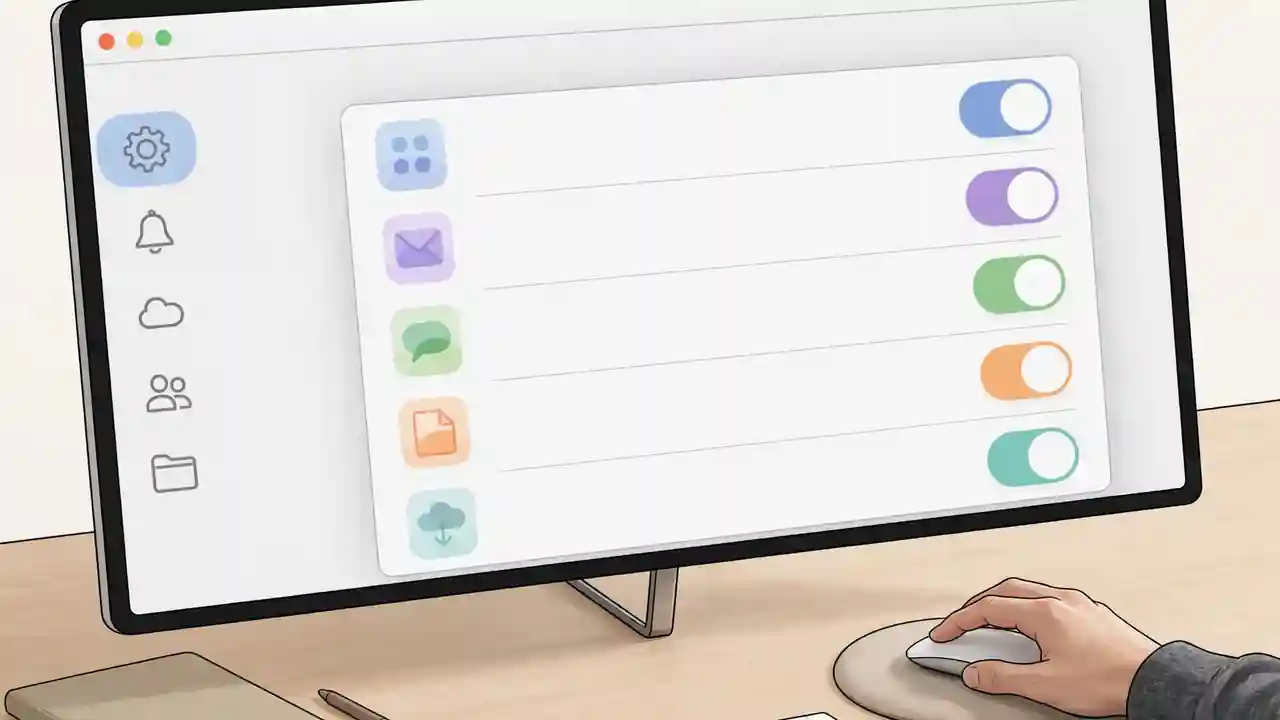
Open Customize, then Connectors, in the Gemini app to see the list. The new Desktop group is where computer use shows its reach beyond Google services. Blender and Autodesk Fusion appear there, joining Git and Obsidian, according to 9to5Google. If an app is not connected and not approved, Gemini cannot open it. Treat the list as a shortlist, not a collection. Connect the apps your real jobs need, and leave the rest off. A photo editor makes sense for creative work; a finance app does not need to be connected for a photo job. The same rule applies to files. Point Gemini at the folder a job needs, such as a folder of clothing photos for listings, and keep it away from folders full of tax returns, medical records or private messages. An agent can only misuse what it can reach.
Four jobs worth trying first
Google lists four starting jobs for computer use: batch color grading photos, filling shipping quotes from local PDFs, building slides from live dashboards, and batch listing items for sale. Each one is a repetitive multi-step chore, and each one is easy to check when it finishes.

Start with work you already do, because you will spot a mistake faster in familiar work. Batch color grading suits photographers who apply the same look to a whole shoot. Shipping quotes suit sellers who copy weights, dimensions and addresses out of local PDFs into forms. Dashboard slides suit anyone who pulls metrics and screenshots from live dashboards into Google Slides. Batch listings suit sellers who photograph clothes, research prices and stage listings on resale platforms.
| Job | What to prepare | Check before you trust it |
|---|---|---|
| Batch color grade photos | One folder of photos, one edited reference photo | Open three graded photos and compare them with the reference |
| Fill shipping quotes from PDFs | The PDF forms, the weights and addresses | Read every filled field against the source PDF |
| Build slides from dashboards | The dashboard links and the regions needed | Open each slide and confirm the numbers match the dashboard |
| Batch list items for sale | A folder of item photos, your prices | Read each staged listing and confirm price, size and photos |
Begin with a small batch. Grade five photos, fill one shipping quote, or stage two listings, then check the result closely. If the small batch is clean, run the rest.
Where Gemini stops and asks you first
Google pauses for logins and payments, and confirmation is needed for sensitive actions. You choose which apps Gemini can access, watch every step live, and pause at any time, so the agent never runs ahead of you on a step that costs money or opens an account.

An agent that could log in, pay, or submit a form without asking would be dangerous, and Google’s design stops at those points. 9to5Google reports that Google pauses for logins and payments, with confirmation needed for sensitive actions. In practice, Gemini reaches a login screen or a checkout page and waits. Type the password yourself, or approve the specific action after reading what it is. Never paste a password into a chat prompt so Gemini can log in for you, and never approve a payment you have not read. The same caution applies to anything that looks like an instruction inside a file or a web page. Mac Observer reports that Google’s support documentation warns agents can run into misleading instructions inside apps and websites. If a file or a page tells Gemini to do something you did not ask for, stop the job and read the file yourself. Our passkeys guide explains a safer way to sign in.
Computer use is not the same as Tasks
Tasks, previously called Gemini Spark, works inside Google apps and connected services, while computer use operates the desktop apps themselves. Tasks can reach local files together with Connected Apps such as Gmail and Google Calendar, but it does not click through menus or fill in forms in other programs.

The two features sound similar and sit in the same app. Tasks works across your Google apps and connected services, even when you are not at your computer. TechCrunch reports it can help sign into websites, make online purchases or book appointments. Computer use is different: it works on your Mac inside the desktop apps you approve, clicking and typing the way you would.
| Way to use Gemini | What it does | Where it works |
|---|---|---|
| Plain chat | Answers questions, drafts text, explains files you share | In the Gemini app chat window |
| Tasks, previously Gemini Spark | Works across Google apps and connected services, reaches local files | Google apps and Connected Apps such as Gmail and Google Calendar |
| Computer use | Clicks, types, opens menus and fills forms | Desktop apps, local files and websites in a background window |
If your job lives inside Gmail, Calendar or Docs, use Tasks. If it lives inside a photo editor, a 3D app or a desktop form, use computer use. Gemini 4 Hydrogen is the fast everyday model in the Gemini app; our Gemini 4 Hydrogen report covers it, and our Gemini 4 Neon report covers the newest model in the family.
Try it now or wait a few months
Try Gemini computer use Mac now if you qualify and you have repetitive multi-step work in desktop apps, and wait if you are outside the United States, on an Intel Mac, on a free plan, or if your work touches money, logins or sensitive files. The feature is days old, and the rollout is still narrow.

If you grade photos in batches, fill the same forms every week, or list items for sale in volume, computer use does the clicking you would otherwise do yourself, and you watch every step in the preview. Start with a small batch and check the result. The case for waiting is just as clear. If you are outside the United States, on an Intel Mac, on a free Gemini account, or using a work or school account, the feature is not open to you yet, and Google has given no date for expansion. Wait also if your work is sensitive: a new agent feature, days after launch, deserves caution around money, medical records and legal files. Try it first on copies of files. Readers who cannot use it yet still have options: Microsoft’s Copilot Mac app is one alternative assistant on the same machine, and TechCrunch notes that OpenAI, Anthropic and Meta already offer agentic features in their desktop apps.
Frequently asked questions
What is Gemini computer use on Mac?
Gemini computer use is a feature in the Gemini app for Mac that lets Gemini click, type, open menus and fill in forms across local files, desktop apps and websites. It works in an isolated background window with a live preview in your chat.
How do I start Gemini computer use on a Mac?
Download the Gemini app for Mac at gemini.google/mac, sign in with a personal Google account on a Google AI Plus, Pro or Ultra plan, update the app, then add @Computer use to your prompt in chat.
Which Macs can run Gemini computer use?
Only Apple Silicon Macs running macOS Sequoia 15.0 or later. Intel Macs are not supported. Check your chip and macOS version in the Apple menu under About This Mac.
Do I need a paid plan for Gemini computer use?
Yes. Google limits computer use to Google AI Plus, Pro and Ultra subscribers on personal accounts for users 18 or older. Free accounts are outside this rollout, and Google has not announced a free tier for it.
Can Gemini see my screen or take over my cursor?
Gemini works in an isolated background window with a live preview in your chat, and your main screen and cursor remain free. You choose which apps it can access, watch every step live, and pause or stop it at any time.
What apps does Gemini computer use work with?
It works with the desktop apps you approve. In Customize, then Connectors, new Desktop apps such as Blender and Autodesk Fusion join Git and Obsidian. The first time Gemini needs an app, it asks whether it may use it.
Is Gemini computer use available on Windows?
No. Google announced computer use only for the Gemini app for Mac, and has said nothing about Windows. The Gemini app for Windows exists, but computer use is not part of it in this rollout.
Sources:
- Google, Automate Mac tasks with Gemini computer use, November 19, 2026 – https://blog.google/innovation-and-ai/products/gemini-app/computer-use-mac/
- Google, The Gemini app is now available on Mac OS, April 2026 – https://blog.google/innovation-and-ai/products/gemini-app/gemini-app-now-on-mac-os/
- TechCrunch, Google gives Gemini the ability to use your Mac for you, November 19, 2026 – https://techcrunch.com/2026/11/19/google-gives-gemini-the-ability-to-use-your-mac-for-you/
- 9to5Google, Gemini app for Mac adds computer use to control desktop apps, November 19, 2026 – https://9to5google.com/2026/11/19/gemini-mac-computer-use/
- The Hindu BusinessLine, Google Gemini can now control Mac computers and perform tasks, November 20, 2026 – https://www.thehindubusinessline.com/info-tech/google-gemini-can-now-control-mac-computers-raising-pressure-on-apples-siri/article71722896.ece?utm_source=non-amp&utm_medium=quickdiscovery&utm_campaign=article
- AppleInsider, Gemini can now control Mac apps, but you still should not let it, November 19, 2026 – https://appleinsider.com/articles/26/11/19/gemini-can-now-control-mac-apps-but-you-still-shouldnt-let-it?utm_medium=social&utm_source=ai_forums
- Mac Observer, Google Gemini Can Now Control Your Mac Apps and Complete Tasks in the Background, November 2026 – https://www.macobserver.com/news/google-gemini-can-now-control-your-mac-apps-and-complete-tasks-in-the-background/