

Introduction
Android 16 is the major Android version Google released in 2025. It arrived first on Pixel phones, and it changed how notifications look, how the system handles large screens, and how security settings work. The visual redesign that many people associate with Android 16 did not arrive in the first release. That part came later, in a quarterly update.
This article follows the rollout in order, from June 2025 to the September update, and covers which Pixel phones Google lists as supported and how to check a phone. Dates and device lists come from Google pages and Android Authority.
What is Android 16, and when did it arrive?

Android 16 is Google’s 2025 major Android release, codenamed Baklava, and it reached supported Pixel phones in June 2025 as a free over the air update. Google announced the release on June 10, 2025, and the rollout began with Pixel devices, with other phone makers following on their own schedules.
Google moved Android 16 earlier in the year than previous major releases. The Android Developers Blog post dated June 10, 2025, titled “Android 16 is here,” marked the start of the stable rollout. Tech Advisor reports the same June 10 date, and notes that the release came with the June Pixel Drop. A major version in June gave Samsung and other makers more time to prepare their own versions for phones released later in the year.
Android 16 is a platform release, with new tools for app makers as well as changes users can see. Some changes, such as Live Updates and desktop windowing, needed app support or later quarterly updates to reach full form. That is why the June release looked quieter than September, and why a phone updated in June did not necessarily show the new design on day one.
How did the rollout work, and why did features arrive in stages?
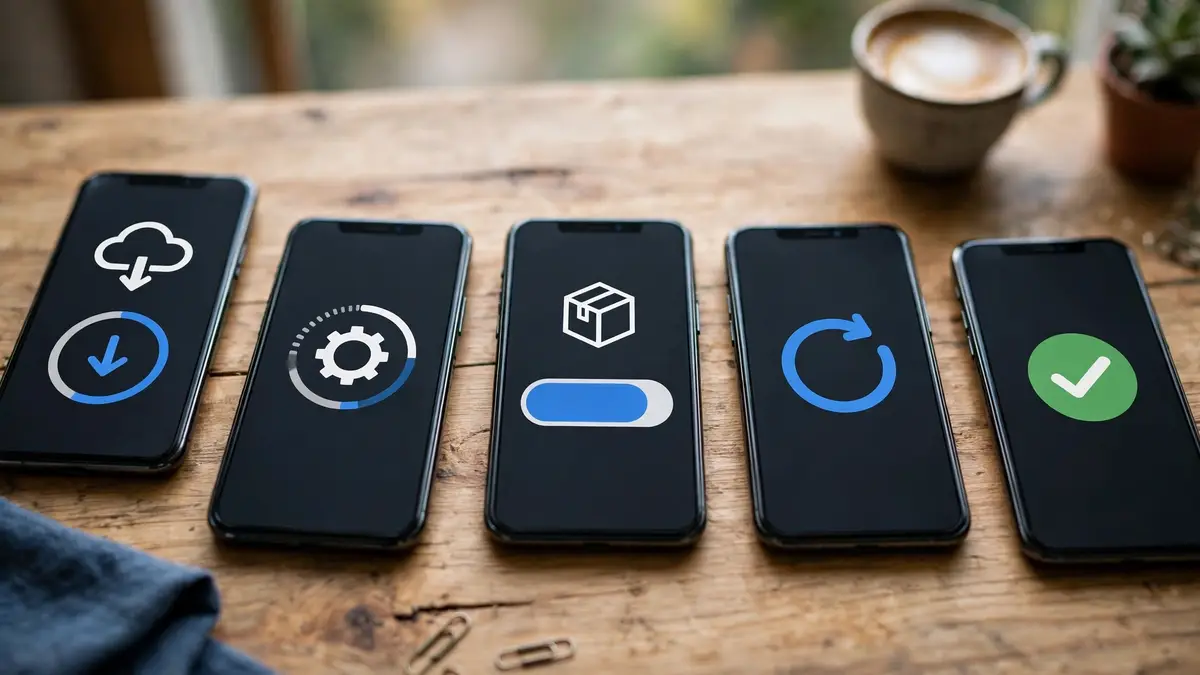
Android 16 rolled out in stages, with the June 2025 stable release first, then quarterly platform releases that added the larger features over the following months. Google calls these quarterly updates QPRs, and the September 2025 QPR1 update brought Material 3 Expressive to Pixel phones.
The staged rollout is normal for Android. Google releases the platform first, then adds features in QPRs, and phone makers adapt each release for their own devices. Android Authority reports that Material 3 Expressive debuted on eligible Pixel devices with QPR1 in September 2025, covering Pixel 6 and newer devices plus the Pixel Tablet. QPR2 began rolling out on December 2, 2025, with the list extended to the Pixel 10 family.
This staging explains a common point of confusion. Two phones can both run Android 16 and look different, because one is on the June build and the other is on QPR1 or later. The version number alone does not tell the full story. The quarterly update level, shown in the phone settings, is the detail that matters when a feature seems missing.
What is Material 3 Expressive, and what does it change on screen?
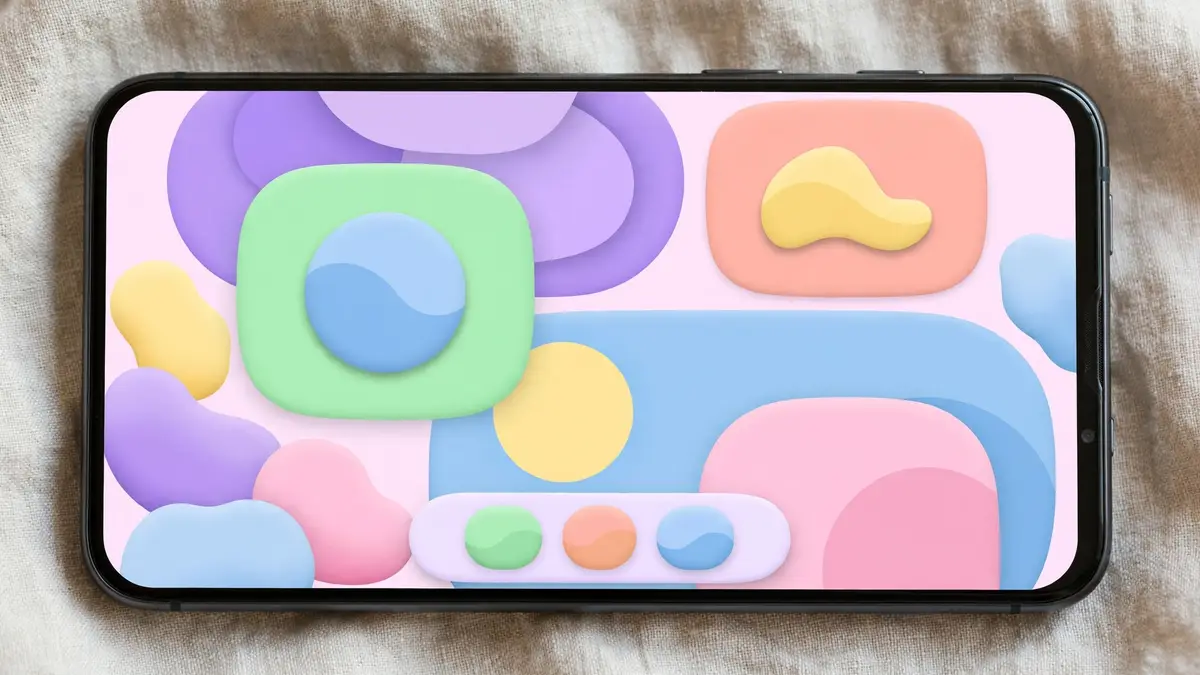
Material 3 Expressive is Google’s design update for Android, announced on May 13, 2025, and it changes colors, shapes, motion, and the layout of system controls. It builds on Material You, the design Google introduced with Android 12, and it reached Pixel phones with the Android 16 QPR1 update in September 2025.
Google describes Material 3 Expressive in its May 13, 2025, blog post as a design that makes a phone feel more personal, with springy animations, dynamic color themes, emphasized typography, and responsive components. When a notification is dismissed, nearby notifications respond to the drag, and the shade background blurs slightly to give a sense of depth. The volume slider and the recent apps screen use the same kind of motion, so the system feels consistent from one screen to the next.
The practical changes are in Quick Settings and the notification shade. Tiles can be resized, so more controls fit on one screen, and users can pin favorites such as Flashlight or Do Not Disturb. Android Authority reports that the redesign also reached Google apps over time, including Gmail, Chrome, and Files. Makers with their own designs, such as Samsung with One UI, do not use the full Pixel version, so the look varies by brand.
How do Live Updates work?
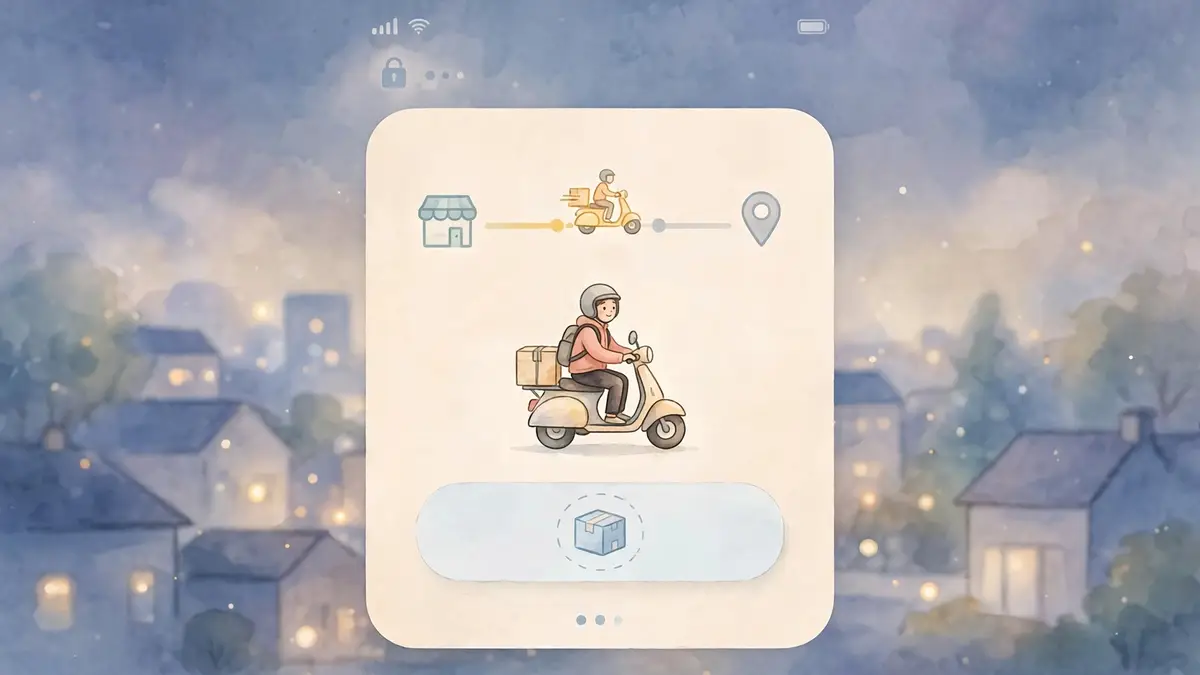
Live Updates are progress notifications from select apps, shown in a glanceable form so a user can follow a delivery, ride, or trip without opening the app. Google introduced them with Android 16 for top delivery, rideshare, and navigation apps, and they appear on the lock screen and in the notification shade.
Google explains Live Updates in its Material 3 Expressive blog post with a food delivery example. After placing an order, the user gets a glanceable Live Update that tracks delivery progress. The update stays visible while the order moves, and tapping it opens the app for more detail. TechRepublic reports the same idea in its Android 16 launch coverage, describing Live Updates as real time alerts for food delivery and ride hailing, shown on the lock screen or in the notification shade.
Live Updates depend on app support. An app must add the feature before its progress can appear, so it does not work for every app at once, and unsupported apps still send normal notifications. If a supported delivery or ride app shows a persistent progress card after an order starts, Live Updates are working. If not, the app may not support it yet, or the phone may be on an older build.
What changed in notifications and Quick Settings?
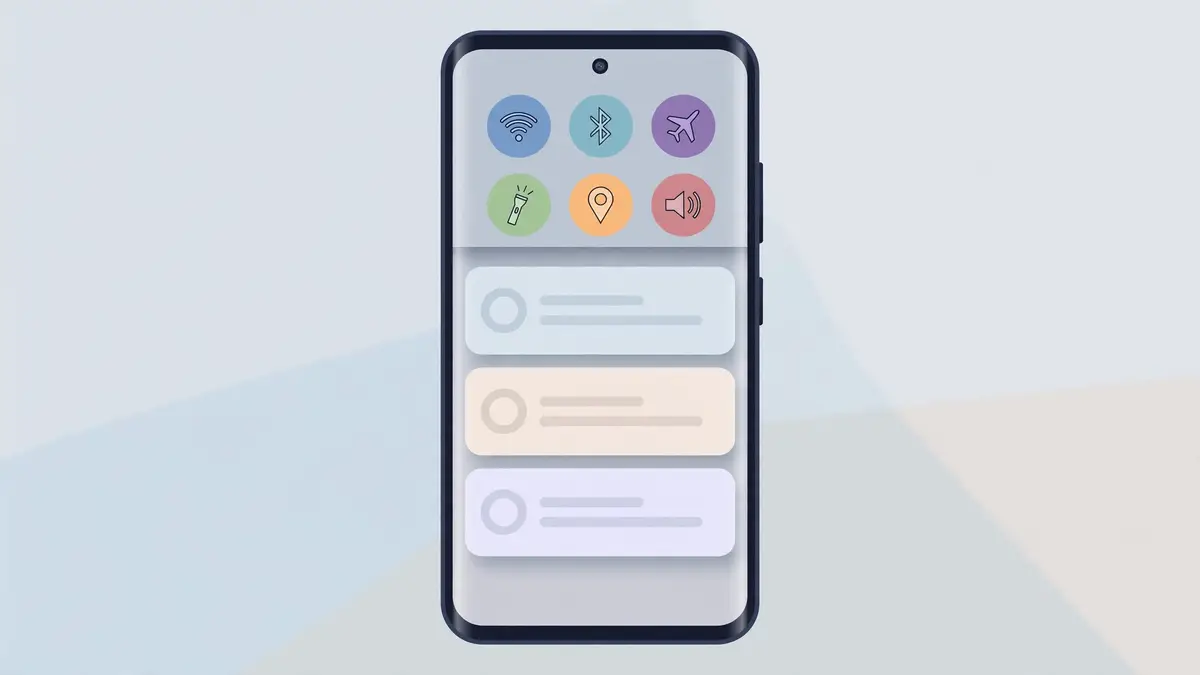
Android 16 groups notifications from the same app into a single expandable card, adds Live Updates for progress tracking, and makes Quick Settings tiles resizable so more controls fit on screen. The aim is a shorter notification list, with the most time sensitive item easy to find.
Notification grouping is the change most users notice first. Instead of a long stack of separate alerts from one app, Android 16 bundles them into one card that can be expanded. That keeps the shade shorter and makes it easier to see which app needs attention. Live Updates sit at the top of this system, because a delivery or ride in progress is more urgent than a general alert, and Google designed them to stay visible while the task runs.
Quick Settings changed in the same direction. Tiles are resizable, so more small tiles fit on a page, and Android Authority reports that users can pin more controls, such as Flashlight or Do Not Disturb. The shade background uses a subtle blur, which Google says helps the user stay aware of the app behind it. Customization happens in the same Quick Settings edit screen as before.
What does Android 16 add for large screens and multitasking?
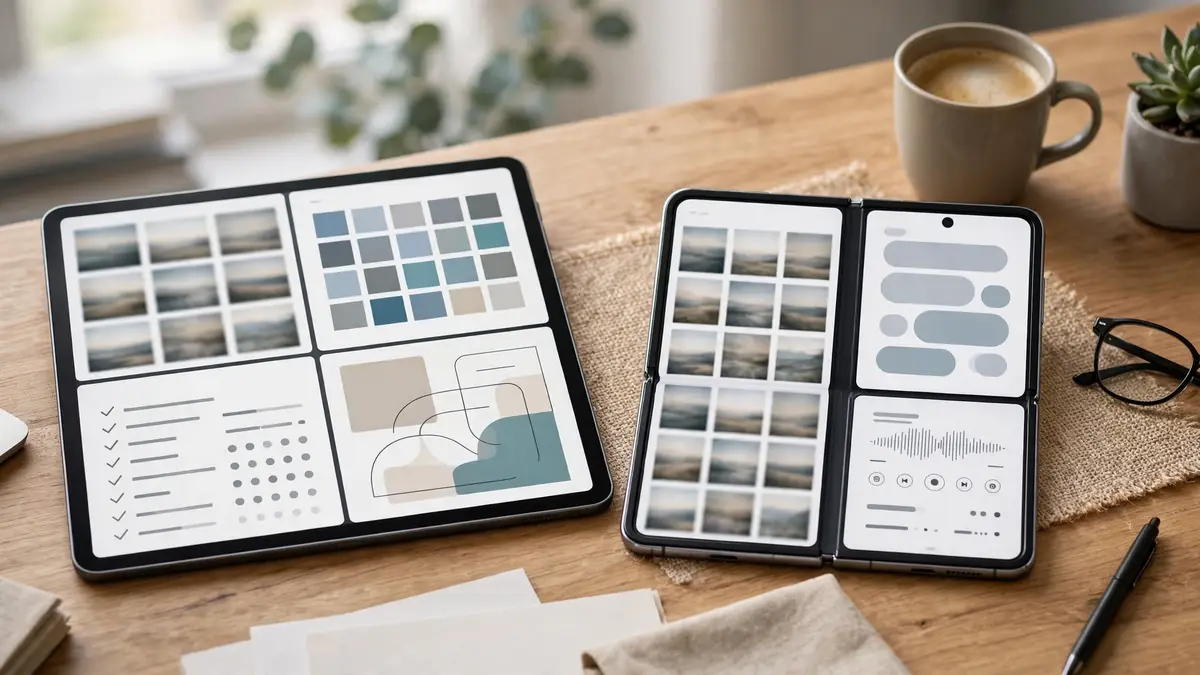
Android 16 adds desktop style windowing for large screens, developed with Samsung, so apps can open, move, and resize in multiple windows on tablets and foldables. The feature rolled out later than the June 2025 release, with desktop windowing and related multitasking tools arriving in later quarterly updates.
TechRepublic reports that Android 16 introduces desktop style windowing in collaboration with Samsung, letting users open, move, and resize multiple app windows for a PC like experience. The report also notes that the feature was expected to become more widely available on tablets and foldables with external display support later in the year. That timing matters. A tablet that received Android 16 in June did not necessarily get desktop windowing at the same time, because the windowing tools were part of the later quarterly work.
For phones, the multitasking changes are smaller, with split screen and recent apps working as before, plus smoother motion. For tablets and foldables, the change is larger, because resizable windows replace the fixed split screen view. Buyers should check the device maker page, not just the Android version, because large screen features depend on the device and its quarterly update.
What changed for security and privacy?

Android 16 adds Advanced Protection as a device level security option, with protections against online attacks, harmful apps, unsafe websites, and scam calls, plus stronger identity checks for sensitive actions. The feature is aimed at people at higher risk, such as journalists and officials, but it is available to any user who turns it on.
TechRepublic reports that Android 16 introduces Advanced Protection Mode, built for people at increased risk of cyber threats, and that Google says it protects against online attacks, harmful apps, unsafe websites, and scam calls. The report lists memory checks, USB restrictions, and scam call filtering among the protections. In practice, Advanced Protection is a bundle. Instead of turning on each protection separately, a user turns on one mode and the system applies the set together.
Identity Check is a related change. It adds a biometric check for sensitive actions outside a trusted place, so a stolen phone and a known passcode are not enough on their own. Security updates still arrive separately from major versions, through monthly patches and Google Play system updates, so a phone on Android 16 still needs those patches.
Which Pixel phones can get Android 16?
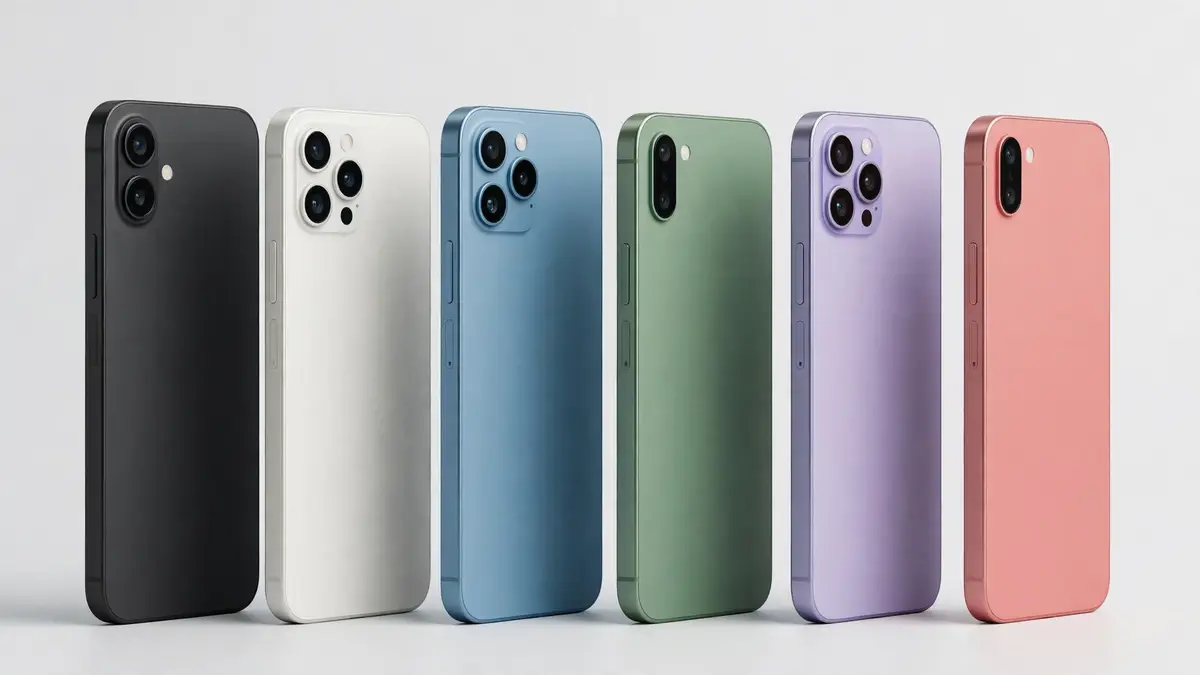
Google lists Android 16 updates for Pixel 6 and 6 Pro, Pixel 6a, Pixel 7 and 7 Pro, Pixel 7a, Pixel Fold, Pixel Tablet, Pixel 8 and 8 Pro, Pixel 8a, Pixel 9 models, and Pixel 9a. Pixel 5 and older models are not listed, because their support has ended.
The list comes from the Android Developers “Get Android 16” page, which names each supported Pixel device for over the air updates and downloads. Android Authority reports the same range for the QPR2 rollout, extended to the Pixel 10 family, which shipped later in 2025. The Pixel 10 list matters because a phone bought in late 2025 may already run Android 16 or a later quarterly update out of the box, with no manual update needed.
Support length varies by model, separate from the Android 16 list. Google promised seven years of OS and security updates for Pixel 8 and newer models, and five years for Pixel 6 and Pixel 7 models. A Pixel 6 on Android 16 is therefore near the end of its window, while a Pixel 9 has years left. For non Pixel phones, the maker decides the list and timing, so a Samsung or OnePlus model may get Android 16 months after Pixel phones.
How do you check for and install the update?
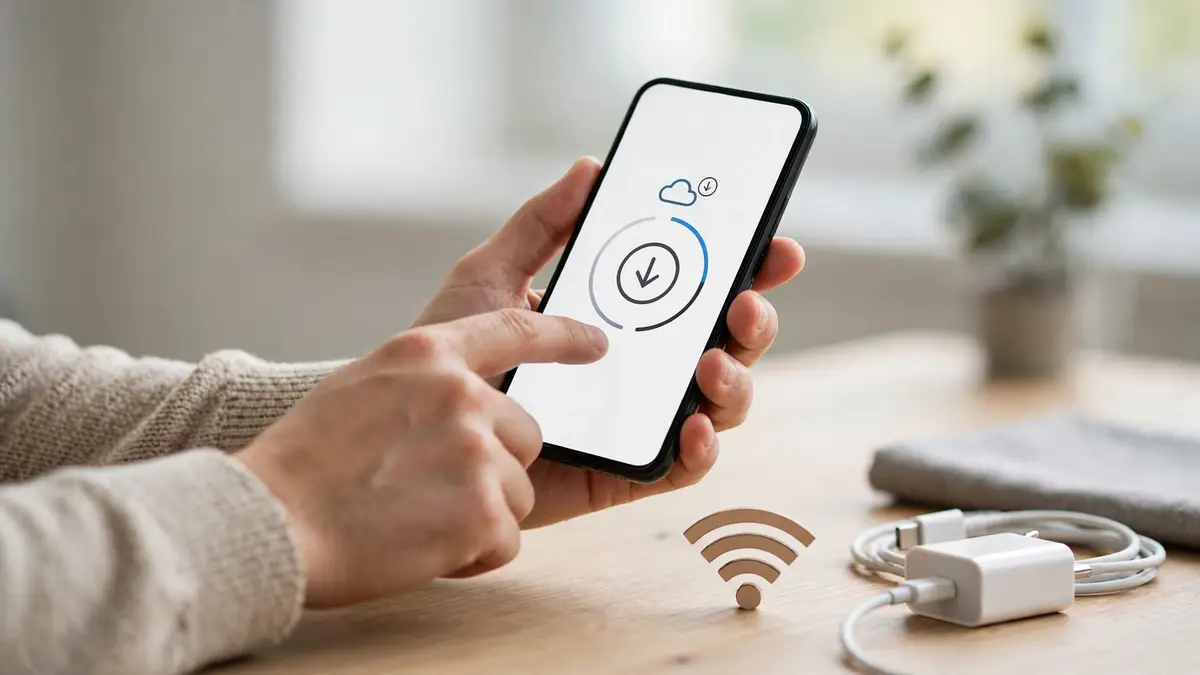
To check for Android 16, open Settings, tap System, tap Software updates, and tap System update, then follow the on screen steps to download and install if an update is offered. Back up important data first, and use Wi-Fi for the download, because a major update is large.
The Android Developers page says a supported Pixel can receive Android 16 over the air, that a full reset is not needed in most cases, and that backing up data first is recommended. A backup protects photos, messages, and files if the install is interrupted.
If no update appears, the phone may already be current, the model may not be supported, or the rollout may not have reached it yet. Rollouts arrive in waves, so two identical phones can get the same update days apart. If the phone is from another maker, check that maker’s support page, because Pixel dates do not apply to other brands. Do not install a system image from an unofficial site to force the update, because that can wipe data and break security features.
What has not changed, and what should you check today?

Android 16 does not change the basic way Android updates work: major versions arrive over the air, quarterly updates add features, monthly patches handle security, and phone makers set their own schedules. A phone still needs a supported model, a charged battery, and enough free space before a major update installs.
The checks that matter most are short. First, check the Android version and the quarterly update level in Settings, because the version number alone does not show whether Material 3 Expressive or desktop windowing is included. Second, check the security patch date in the same settings screen, because a phone on Android 16 with an old patch is not fully current. Third, check the maker support page for the model, to confirm how long updates will continue.
For a buyer, the practical question is support length, not just the version on the box. A Pixel 8 or newer model has a longer support promise than a Pixel 6, and that difference will outlast any single Android 16 feature. For a user keeping an older phone, the practical step is the update check above, plus a backup before installing.
Is Android 16 free to install?
Yes, Android 16 is a free over the air update for supported devices. Google lists over the air updates and downloads for supported Pixel phones on its Android Developers page, and phone makers do not charge for major Android version updates.
Does Android 16 include Material 3 Expressive on every phone?
No. Material 3 Expressive reached Pixel phones with the Android 16 QPR1 update in September 2025. Phone makers with their own designs, such as Samsung with One UI, use their own version of the design, so the look varies by brand.
Which Pixel phones get Android 16?
Google lists Pixel 6 and 6 Pro, Pixel 6a, Pixel 7 and 7 Pro, Pixel 7a, Pixel Fold, Pixel Tablet, Pixel 8 and 8 Pro, Pixel 8a, Pixel 9 and 9 Pro models, and Pixel 9a. Android Authority reports the QPR2 list extended to the Pixel 10 family.
What are Live Updates?
Live Updates are progress notifications from select delivery, rideshare, and navigation apps. They show real time progress on the lock screen and in the notification shade, so a user can follow an order or ride without opening the app.
What is Advanced Protection in Android 16?
Advanced Protection is a device level security mode that bundles protections against online attacks, harmful apps, unsafe websites, and scam calls. TechRepublic reports that it includes memory checks, USB restrictions, and scam call filtering, and that it is aimed at people at higher risk.
Why does my phone say Android 16 but look like the old design?
The phone is probably on the June 2025 build, before QPR1. Material 3 Expressive arrived with the September 2025 QPR1 update on Pixel phones, so check the quarterly update level and install the latest system update if one is offered.
How do I check for the Android 16 update?
Open Settings, tap System, tap Software updates, and tap System update. Back up important data first, use Wi-Fi for the download, and check the maker support page if no update appears, because rollouts arrive in waves and schedules vary by brand.
References
- Android Developers, Get Android 16: https://developer.android.com/about/versions/16/get?hl=en&authuser=4
- Google Blog, Material 3 Expressive redesign for Android and Wear OS: https://blog.google/products/android/material-3-expressive-android-wearos-launch/
- Android Authority, Material 3 Expressive deep dive: https://www.androidauthority.com/google-material-3-expressive-features-changes-availability-supported-devices-3556392/
- Android Authority, Android 16 QPR2 supported Pixel phones: https://www.androidauthority.com/google-android-16-qpr2-update-supported-pixel-phones-3621495/
- Android Authority, Android 16 QPR3 supported Pixel models: https://www.androidauthority.com/android-16-qpr3-update-supported-pixel-models-3645552/
- Tech Advisor, Android 16 release date, features and compatible devices: https://www.techadvisor.com/article/2479431/android-16-release-date-new-features-compatible-devices.html
- TechRepublic, Google releases Android 16: https://www.techrepublic.com/article/news-android-16-launch-notifications-security/
- 9to5Google, Android 16 launch: https://9to5google.com/2025/06/10/android-16-will-officially-launch-later-today/
- Android Developers Blog, Android 16 label index: https://android-developers.googleblog.com/search/label/android16?hl=mk&max-results=12



4 comments